
Add a book to your author website
Add a book to your author website with its cover, blurb, status and buy links for Amazon, Apple Books, Kobo and more. Each step is shown. Free for 14 days.
By the end of this guide you will have a book on your author website with its own page, so readers can see the cover, read the blurb and click through to buy it from the shop they use.
Every book you add gets a page of its own on your site. You can add one in a few minutes and change it whenever you like.
Add the book
- Click My books in the menu, then click + Add a book.
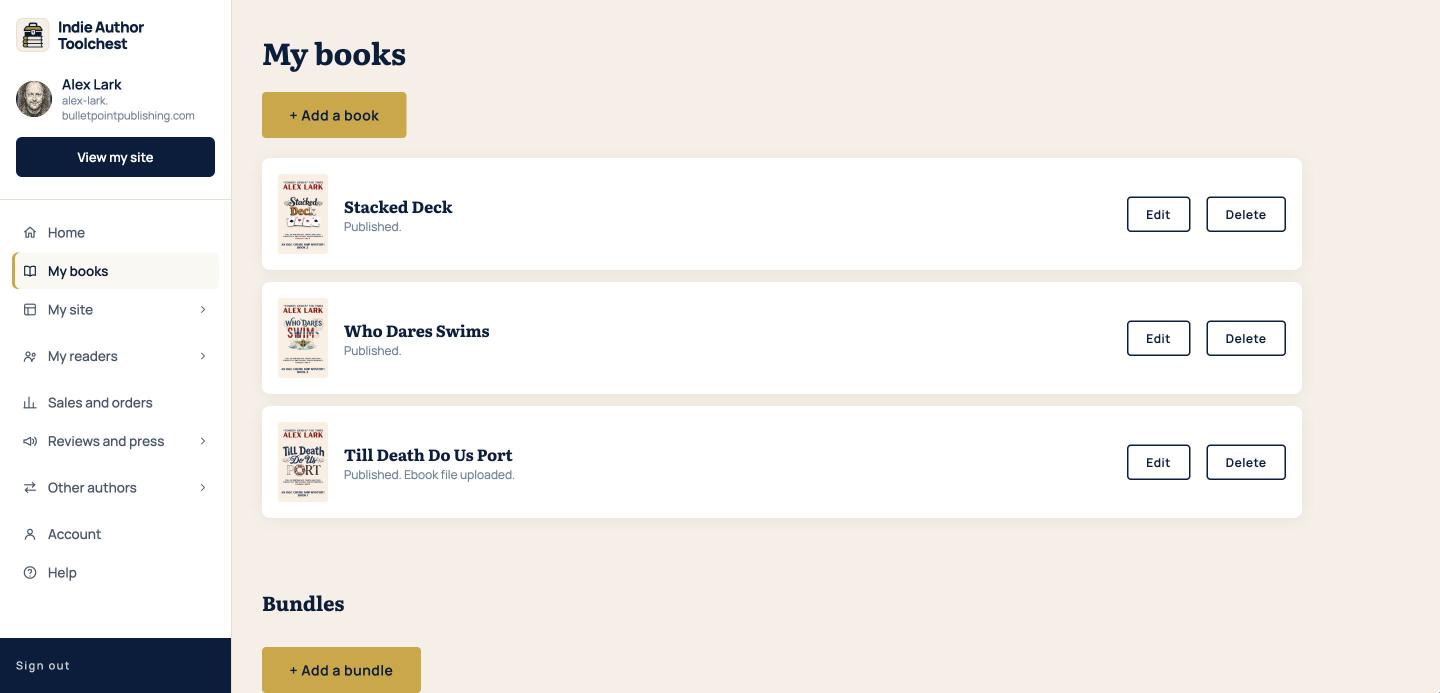
- Type the Title. If the book is in a series, fill in Series name and number, for example Harbour Mysteries, Book 1.
- Under Cover image, click Choose file and pick your cover. The form asks for an image at least 600px wide.
- Choose a Category: Fiction, Non-fiction or Children's.
- Choose a Status. Draft (hidden) keeps the book away from readers, Published makes it live and Coming soon shows it before release.
- For a Coming soon book, fill in Release date (optional). Reviewers who took a review copy get an email on that date.
- Write the Tagline, a single line under the title, and paste in the Blurb.
Link to the shops that sell it
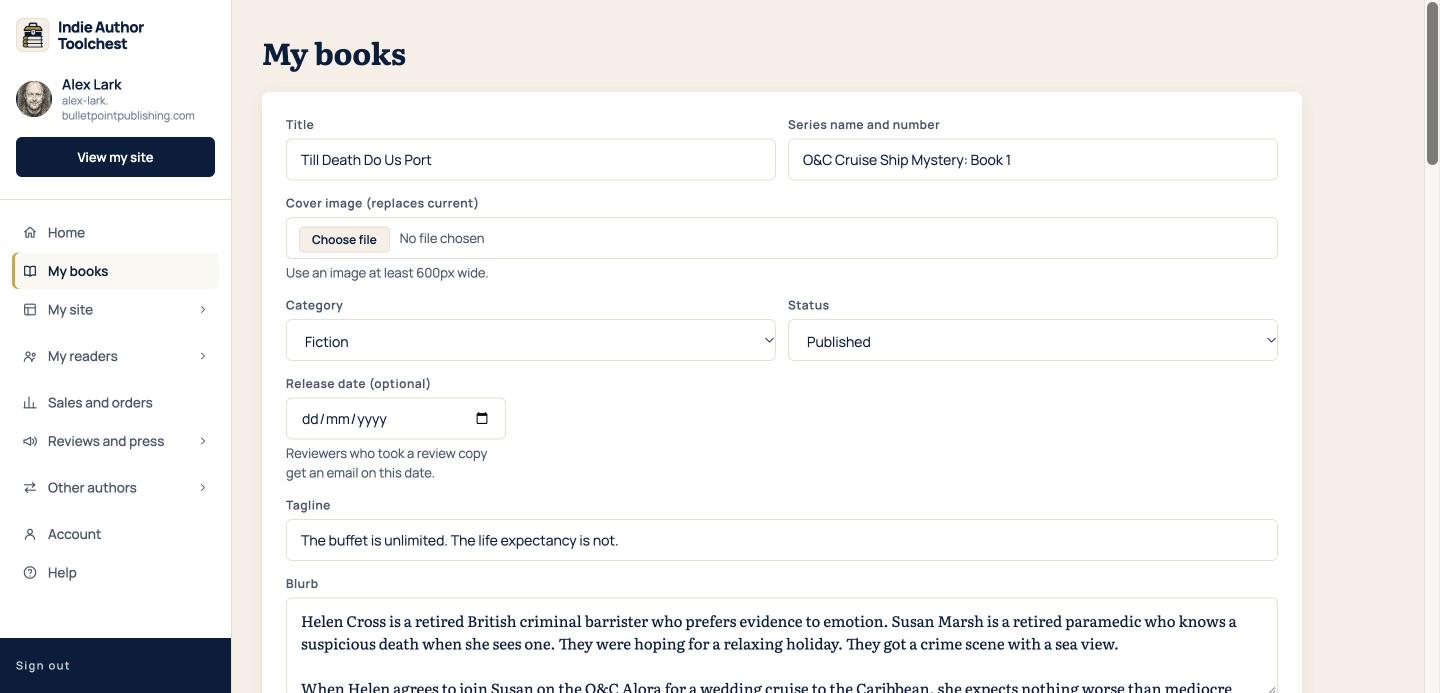
Further down the form you tell readers where to buy. Each link you fill in becomes a buy button on the book's page.
- For an Amazon link, find How readers get this book and click Sold via Amazon for the ebook, the physical copy or both. Enter the Amazon code (ASIN), the ten characters under Product details on your book's Amazon page. Readers are sent to the Amazon store for their own country.
- Under Also available at, paste the links for Apple Books link, Kobo link, Google Play Books link and Barnes & Noble link. Leave blank any shop that does not sell your book.
- If there is an audiobook, tick This book has an audiobook and enter the Audible code or the link.
- Under Position on your page (1 comes first), enter the place you want the book to take among your others.
- Click Save book.
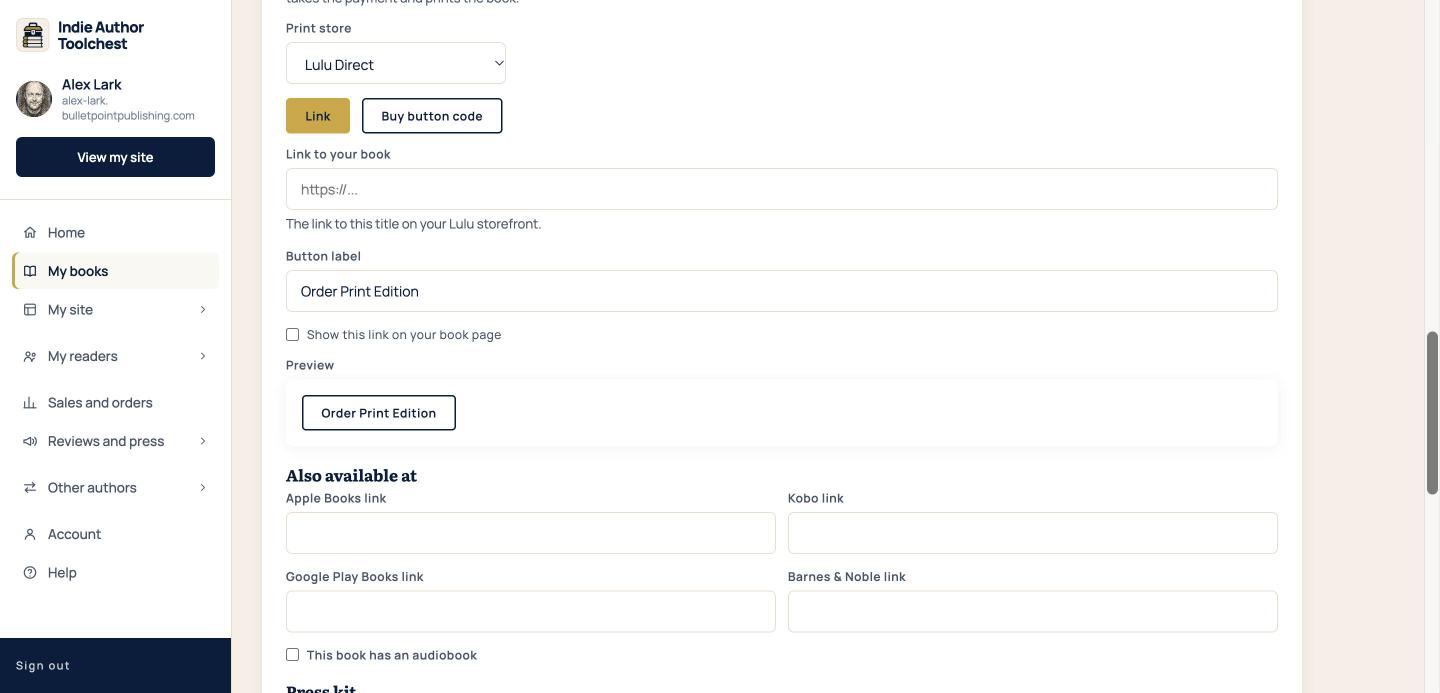
If you are not sure which of these shops carry your book, our lesson on getting your book onto Apple Books, Kobo, Google Play and Barnes & Noble explains how each one works.
Check the book page
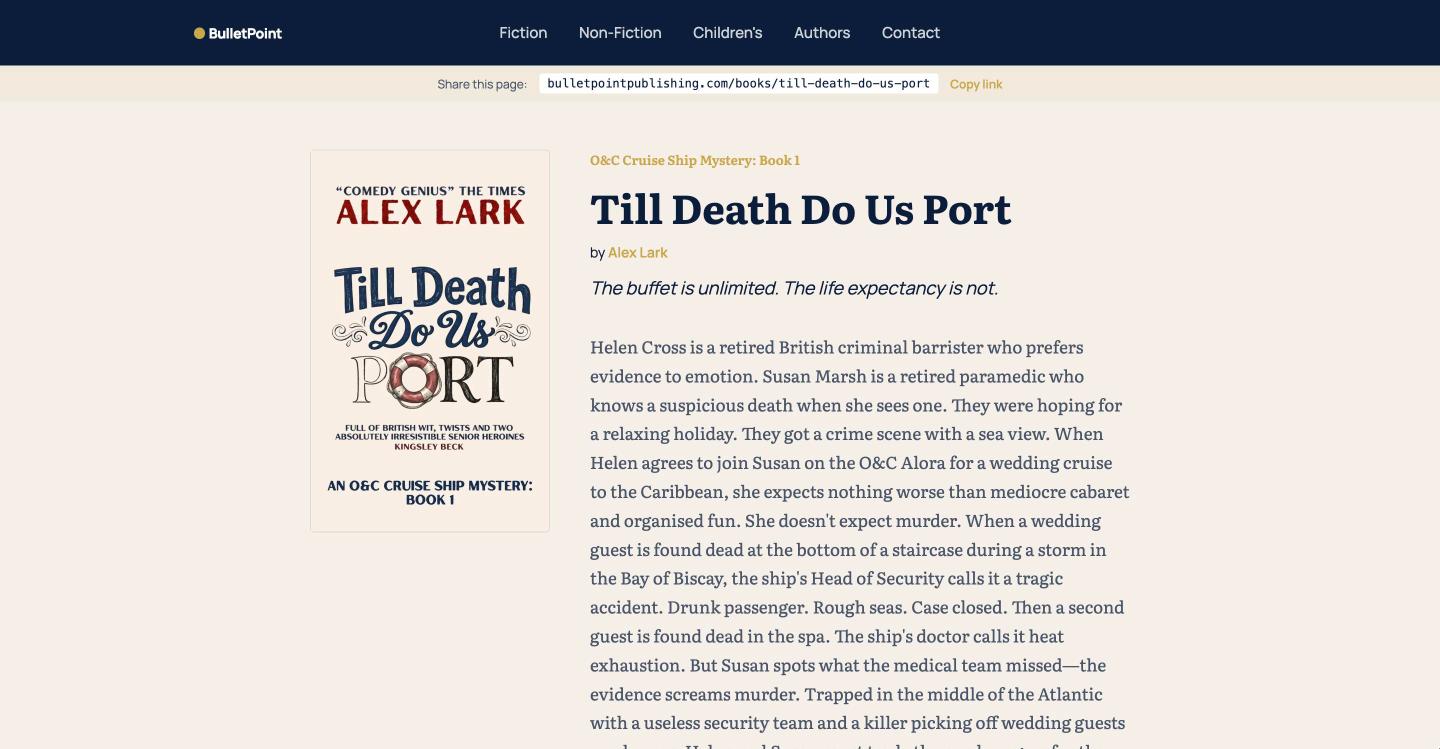
Set the status to Published and your book has a public page. It shows the cover, the series line, the title, your name, the tagline and the blurb. Click View my site at the top of the menu to see it. Changes can take up to five minutes to show.
Change a book later
Click My books, then Edit beside the book. Change what you need and click Save book. When you upload a new file in the cover box, it replaces the old cover.
Good to know
- Your book's web address is made from its title the first time you save it. It stays the same if you rename the book, so links you have already shared keep working.
- If you leave Your Amazon Associates ID (optional) empty under My site, then Profile and design, your Amazon links carry the Toolchest's ID and any commission goes to the Toolchest. Add your own ID and the commission comes to you.
- Selling the book yourself, with a price and an ebook file, switches on when you subscribe. You also connect your own Stripe account under Account, and the money from each sale goes straight to you.
Your next step
Add the rest of your books, then choose a look for your author website.
You can try all of this free for 14 days, with no card: start at the Indie Author Toolchest.
Run it all from one place
Author page, direct sales, reader list, review copies and press kit, built from one ASIN. Free for 14 days, no card.
Start your free trial