
Add social links to your author website
Add Instagram, X, Facebook, TikTok, YouTube, Goodreads and Amazon author page links in the Indie Author Toolchest and see where the icons show on your site.
By the end of this guide your author website shows a row of small icons that take readers to your Instagram, X, Facebook, TikTok, YouTube, Amazon author page and Goodreads author page. A reader who likes your books can follow you where you already post, and you can add or change a link whenever you like.
You need the full web address of each page you want to link. Open the page in your browser and copy the address from the address bar. You can do all of this during your 14 day free trial.
Add your links
- Sign in and select My site in the menu on the left, then Profile and design.
- Scroll to Photo and links. Paste your Amazon author page address into Amazon author page URL and your Goodreads author page address into Goodreads author page URL.
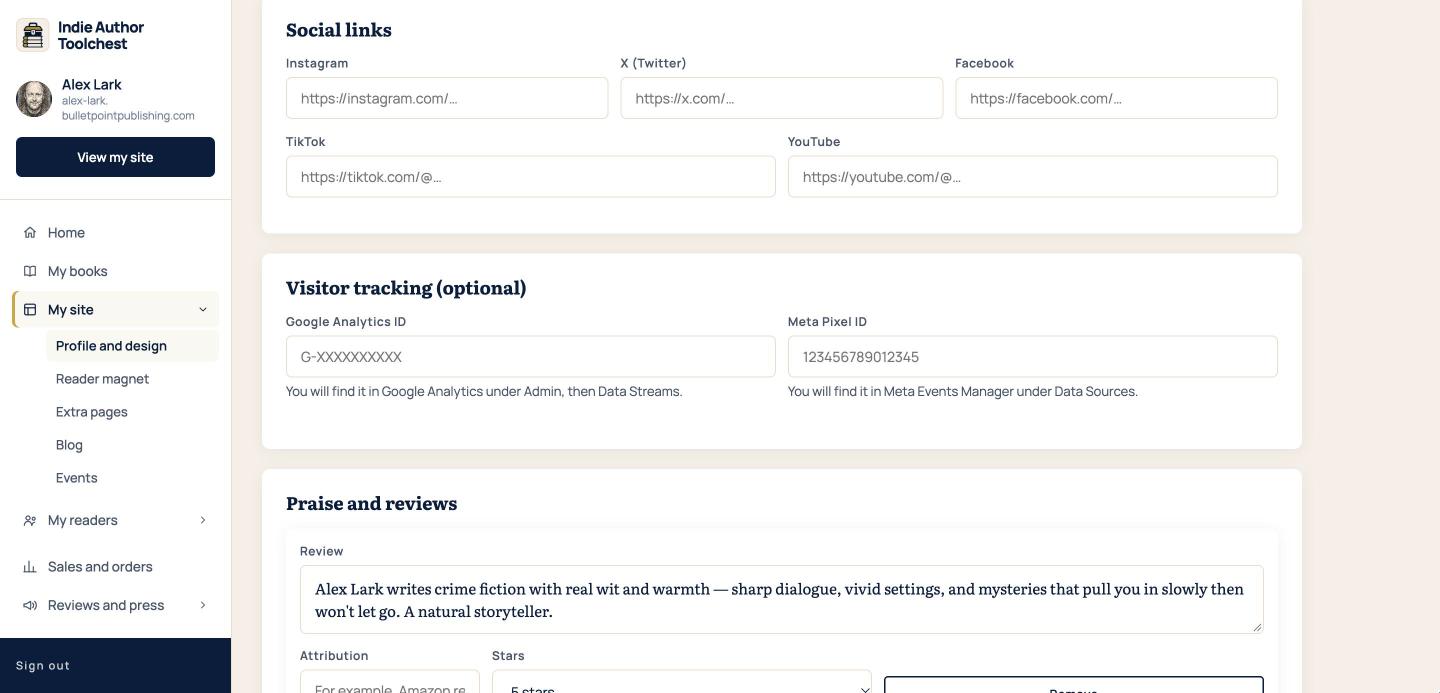
- Scroll to Social links. Paste the address of each profile you use into Instagram, X (Twitter), Facebook, TikTok and YouTube.
- Leave a box empty to hide that icon.
- Scroll to the bottom and select Save changes.
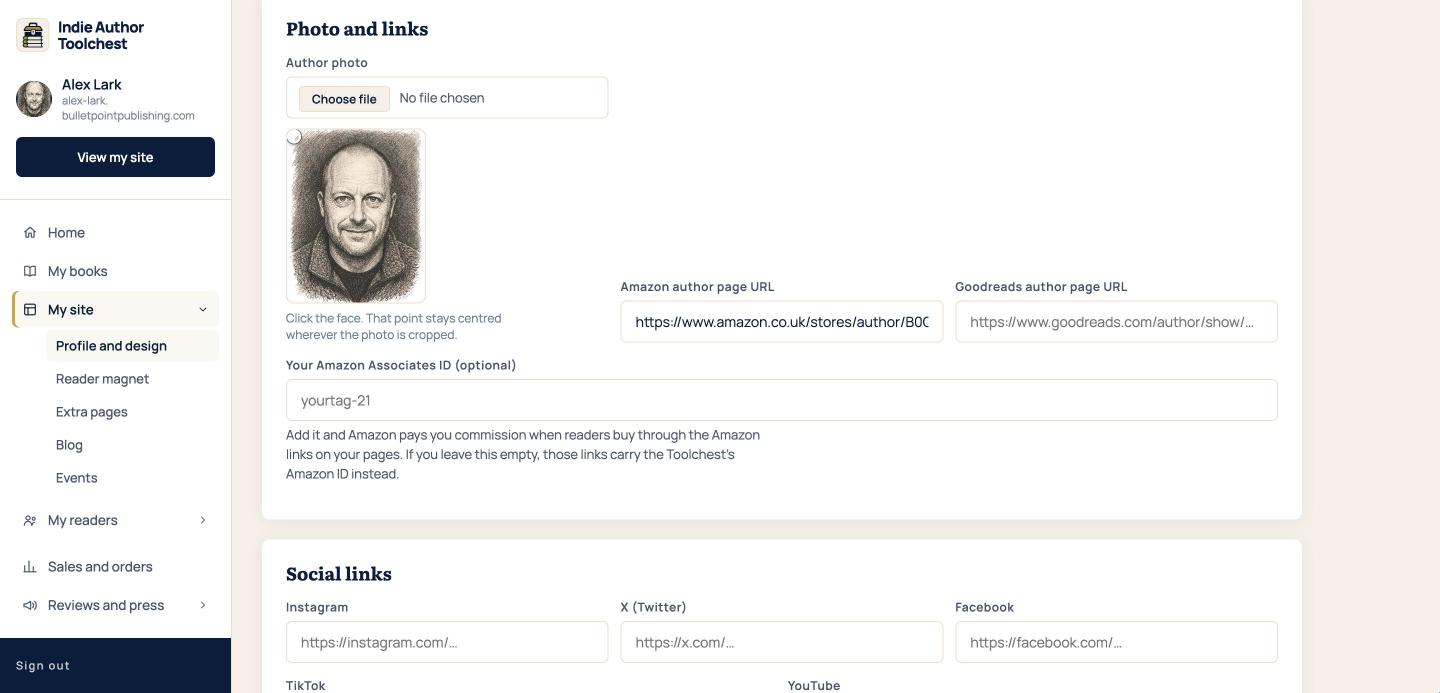
Paste the whole address, starting with https://, because each icon opens exactly what you type in the box.
Where the icons show
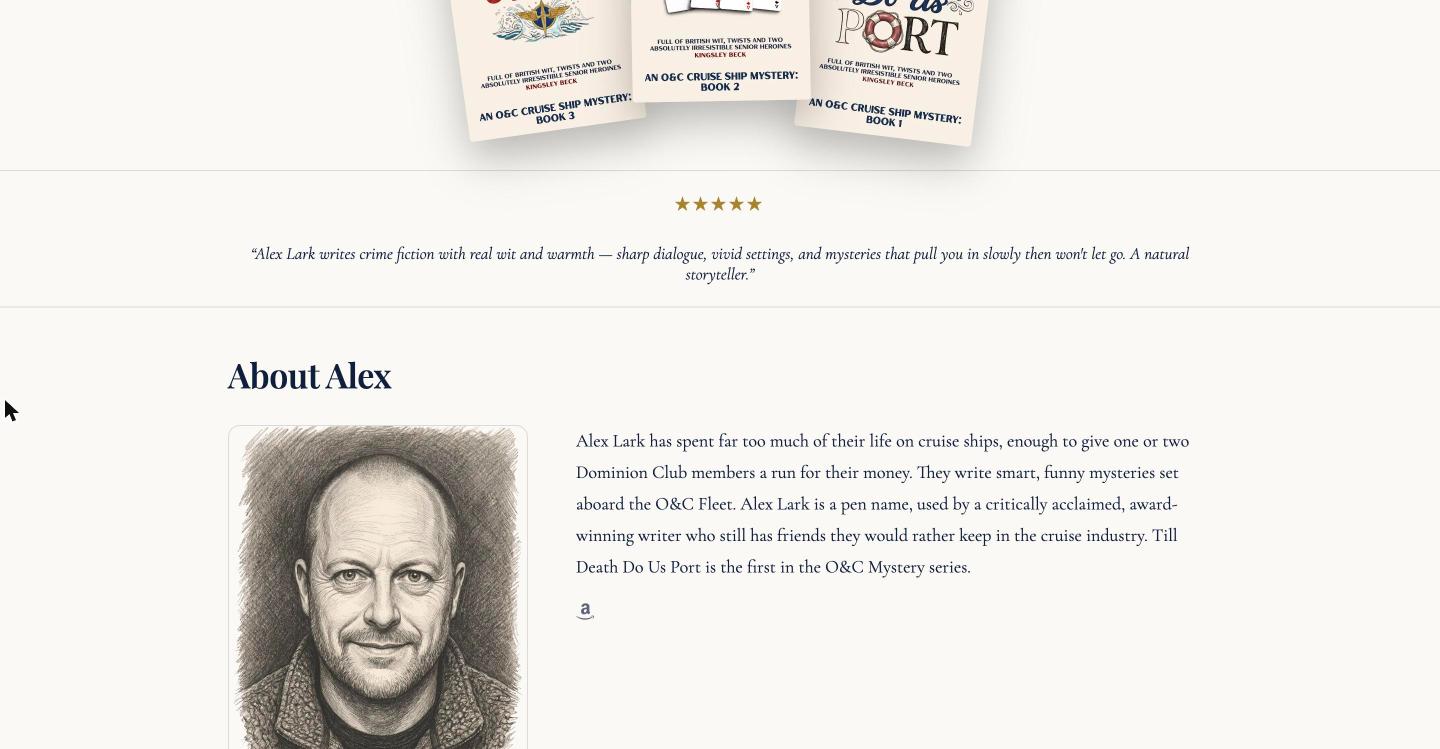
On your author website the icons sit in two places: under your bio in the About section, and in the footer beside your copyright line. On your publisher page on BulletPoint Publishing they sit under your bio in the About the Author section. The About section on your own site appears once you have written a bio, so write your author bio if you have not yet.
The icons always appear in the same order: Instagram, X, Facebook, TikTok, YouTube, Amazon and Goodreads. Your Amazon author page is the Amazon icon. Each icon opens in a new tab, so your reader keeps your site open behind it.
Check it on your site
- Select Save changes and wait up to five minutes for the change to show.
- Select View my site at the top of the menu.
- Scroll to the About section and to the footer, and select each icon to make sure it opens the right page.
If an icon opens the wrong page, go back to Profile and design, replace the address and select Save changes again.
Good to know
Only the platforms you fill in appear, so a site with two links shows two icons. A link you remove stops showing as soon as you save and the five minutes have passed.
Next step
Choose one or two platforms to link rather than all seven. Our lesson on which social platform suits an author helps you pick. Then read Show reader reviews on your author website to add praise to the same Profile and design page.
You can try all of this free for 14 days. Start with the Indie Author Toolchest.
Run it all from one place
Author page, direct sales, reader list, review copies and press kit, built from one ASIN. Free for 14 days, no card.
Start your free trial