
Add Google Analytics to your author website
Paste a Google Analytics 4 ID or a Meta Pixel ID into the Indie Author Toolchest to see who visits your author website, and see the cookie notice readers get.
By the end of this guide your author website will report its visitors to Google Analytics, Meta Pixel or both, so you can see how many people visit and so you can run ads that find readers who have already been to your site.
You need two things before you start: a Google Analytics 4 account, a Meta pixel, or both, and a few minutes. Each tool gives you a short ID, and you paste that ID into one box in your dashboard.
Copy your ID from Google or Meta
- For Google Analytics, open Admin, then Data Streams, and copy your measurement ID. It starts with G- and is followed by letters and numbers.
- For Meta Pixel, open Meta Events Manager, then Data Sources, and copy your pixel ID. It is a number, 5 to 20 digits long.
You only need the tool you use. Copy one ID, or both.
Paste it into your dashboard
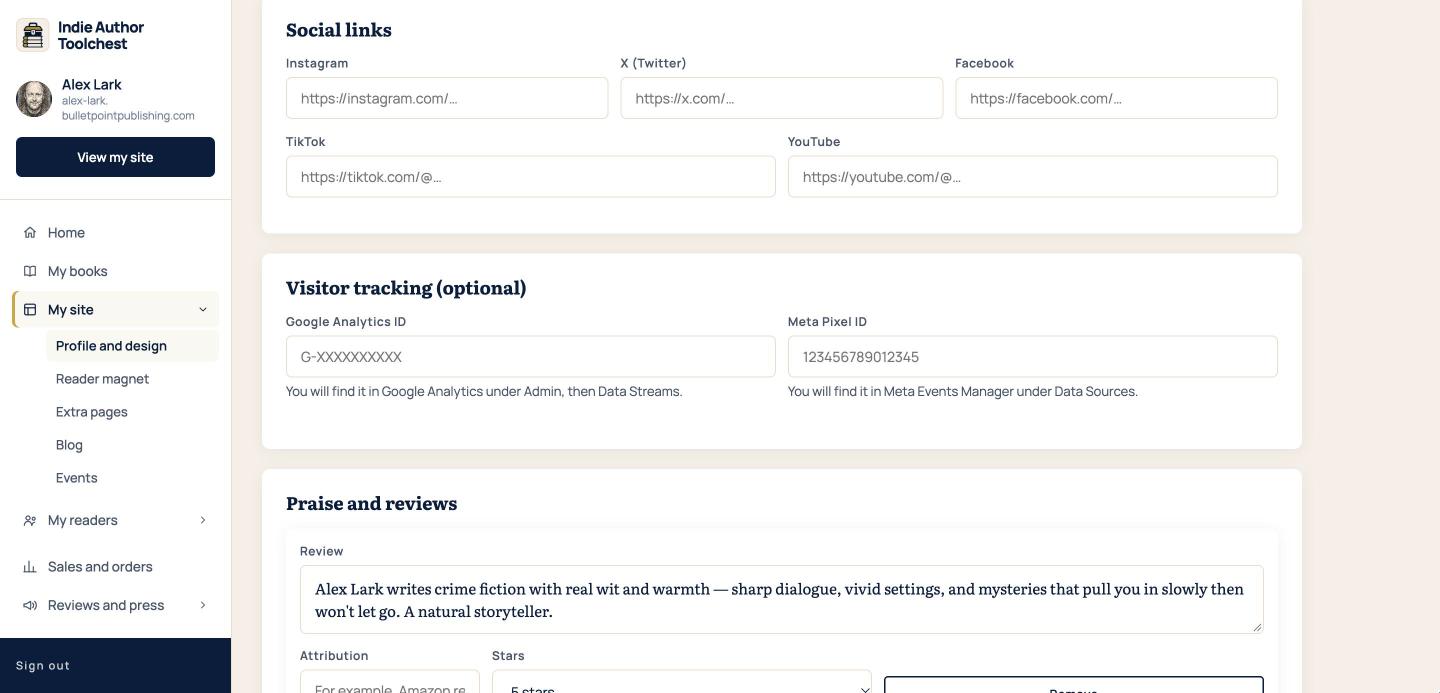
- In your dashboard menu, click My site, then Profile and design.
- Scroll down to the box headed Visitor tracking (optional).
- Paste your measurement ID into Google Analytics ID. The box shows G-XXXXXXXXXX as an example.
- Paste your pixel ID into Meta Pixel ID.
- Scroll to the bottom of the page and click Save changes.
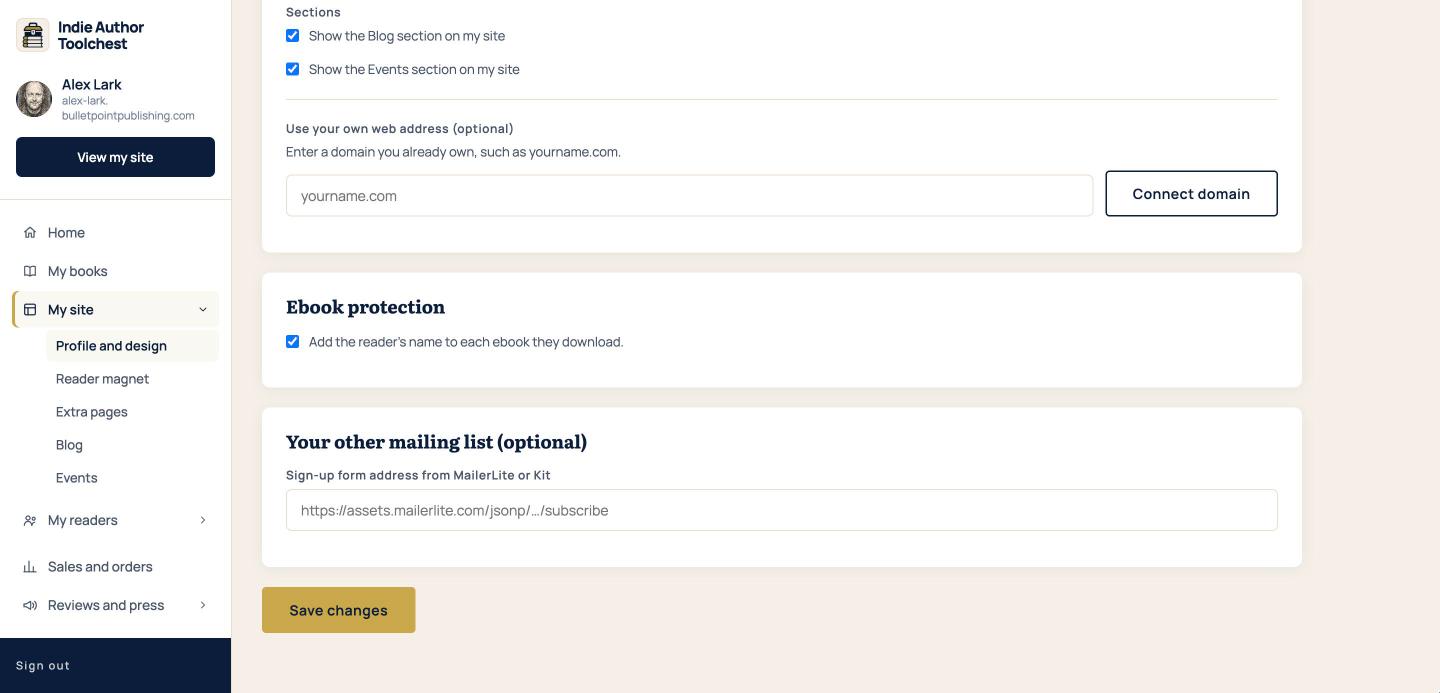
Tracking can take up to five minutes to start. It runs on your site, your book pages and your bundle pages.
What your readers see
Once an ID is saved, a reader who visits for the first time sees a cookie notice. It says the site uses cookies to measure visits and links to the privacy policy. The reader chooses Accept or Decline.
- When a reader clicks Accept, your tracking switches on for that reader.
- When a reader clicks Decline, nothing is tracked for that reader.
The reader's choice is remembered in their browser for your site. If both boxes are empty, no notice appears, because nothing is being tracked.
Because tracking only starts after a reader accepts, the numbers in Google Analytics will be lower than the true number of visitors. Your site works the same for readers who decline.
Check that it works
Open your site in a new browser window and click Accept on the cookie notice. Then open your Google Analytics report or Meta Events Manager. Visits can take a little while to appear in either tool, so check again after a few minutes.
Good to know
- Leave a box empty to turn that tool off.
- The Google ID has to start with G-. An ID in any other shape, such as one starting with UA-, is ignored on your public site.
- Your Meta Pixel ID has to be digits only.
If you are working out what to do with the numbers, our lesson on author website SEO basics explains how readers find an author site.
Your next step
Open My site, then Reader magnet, and give away a free chapter to get email sign-ups.
You can try all of this free for 14 days, with no card: start at the Indie Author Toolchest.
Run it all from one place
Author page, direct sales, reader list, review copies and press kit, built from one ASIN. Free for 14 days, no card.
Start your free trial