
Choose a look for your author website
Pick a theme for your author website and fill in your photo, bio and the line under your name. See each setting and preview the result. Free for 14 days.
By the end of this guide you will have chosen a look for your author website and filled in your name, photo and bio, so a reader who lands on your page sees who you are and what you write.
All of it lives on one page of the dashboard. You can save as often as you like and change any of it later.
Fill in your name, your line and your bio
- Click My site in the menu, then click Profile and design.
- Under Profile and bio, check your Public name and fill in Genre. Both show at the top of your site.
- Write the Line under your name. It is a single line that appears beneath your name, such as witty, well-paced and plotted cozy mysteries.
- Write your Bio. Leave a blank line between paragraphs.
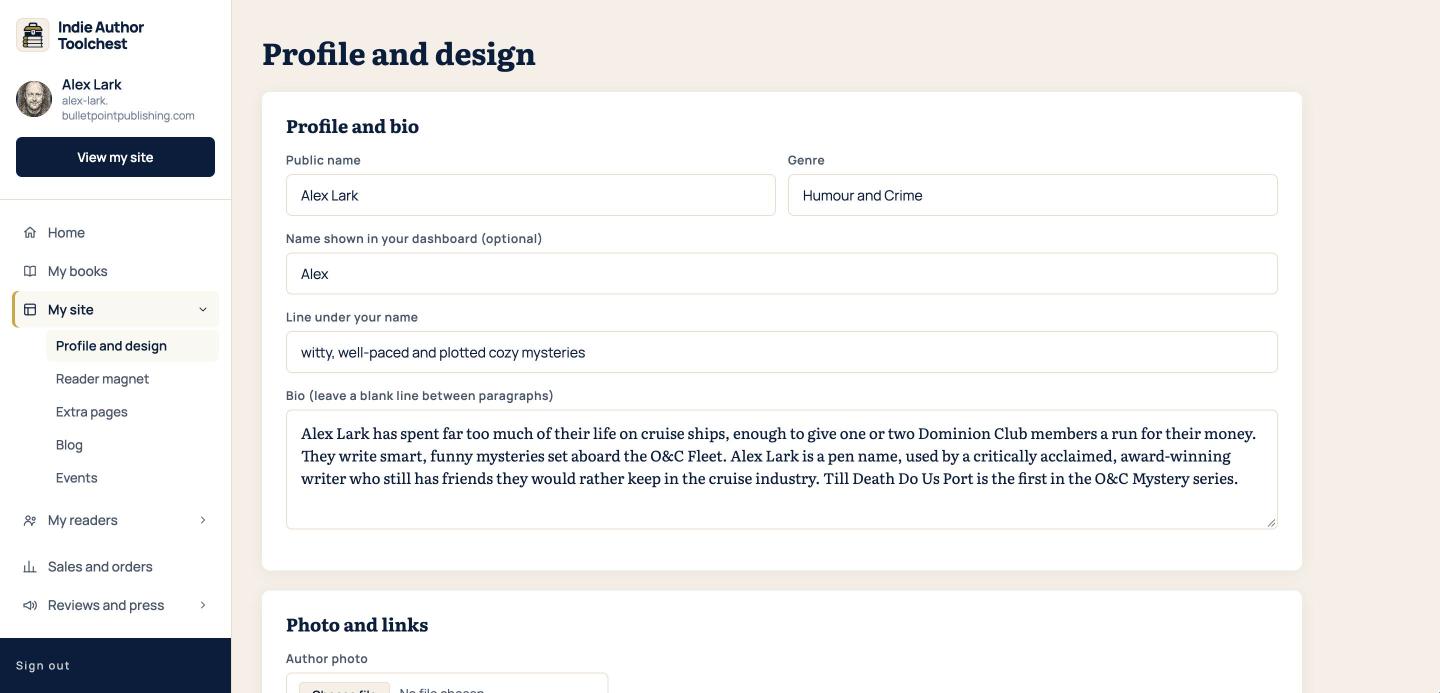
The Name shown in your dashboard (optional) box is for you only and never appears on your site. If you want a head start on the wording, our author bio templates at 50, 100 and 200 words show what goes in each length.
Add your photo
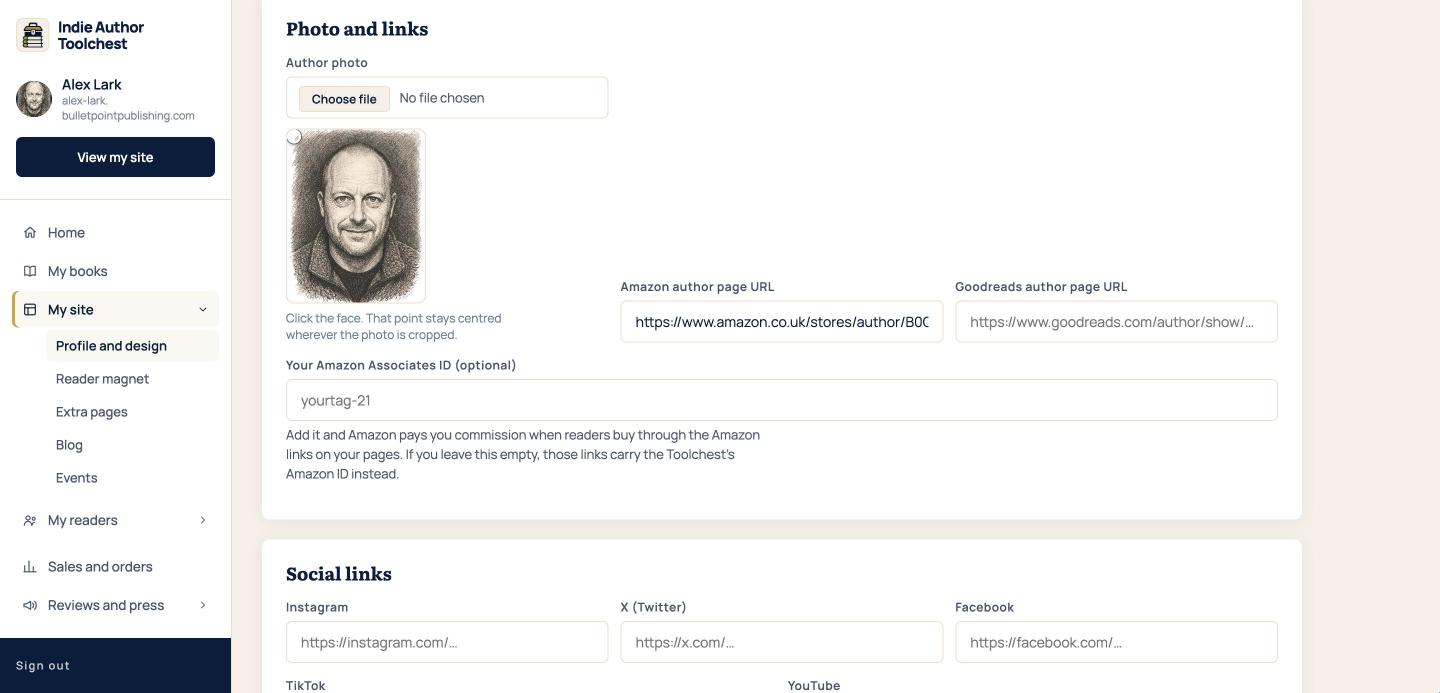
- Scroll to Photo and links. Under Author photo, click Choose file and pick your photo.
- Click the face in the preview. That point stays centred wherever the photo is cropped, so your face stays in view on every screen.
- Add your Amazon author page URL and Goodreads author page URL if you have them. The social links below them each show as an icon on your site, and any box you leave blank is hidden.
Add praise and pick a theme
A theme changes the colours and type of your whole site in one go. Every theme works for every genre, so choose the mood you want readers to feel.
- Scroll to Praise and reviews and click Add review if you have a quote to show. The first review becomes the quote near the top of your site.
- Scroll to Your site. Open the Theme list and choose one of the five.
- Classic is timeless navy and gold with an editorial serif.
- Clean is calm, airy and modern with a deep teal accent.
- Warm is soft, romantic and inviting with a high-contrast serif.
- Epic is deep and mythic, with dark forest, bronze and parchment.
- Bold is punchy and playful, with high contrast and an electric accent.
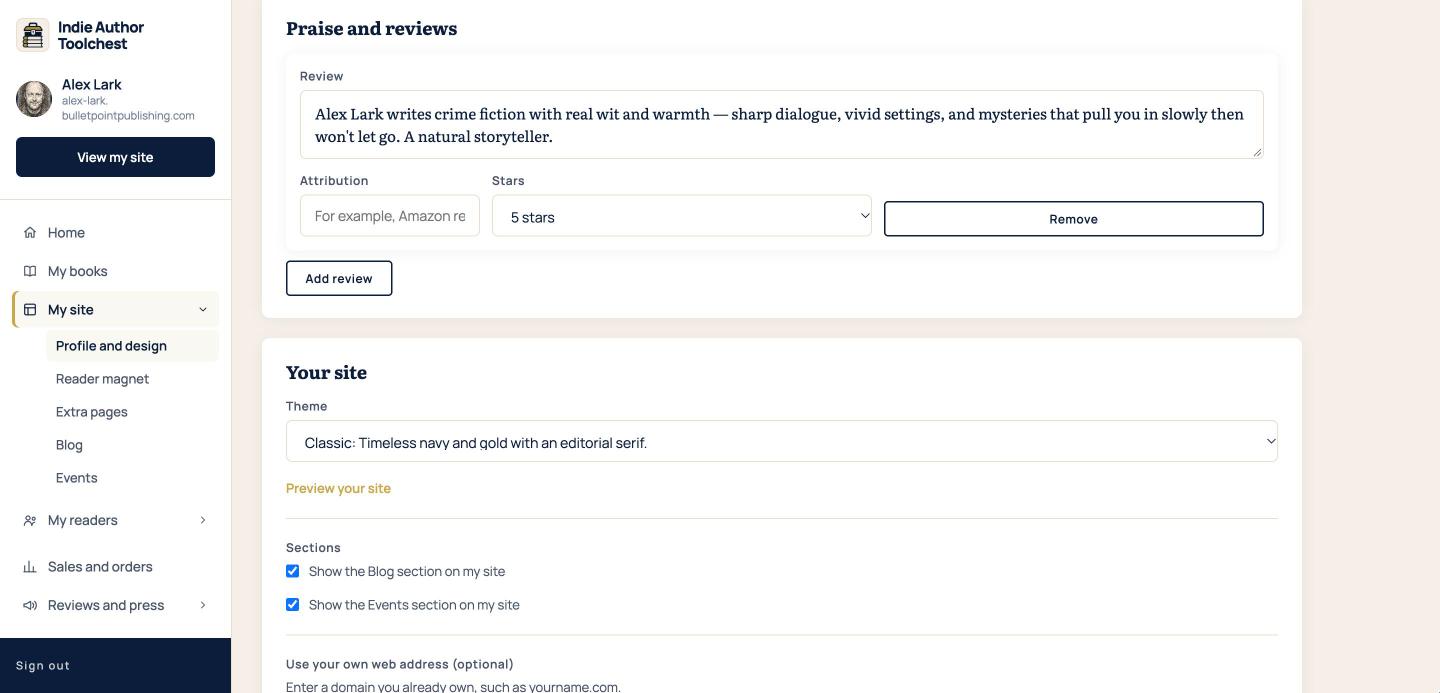
- Under Sections, untick Show the Blog section on my site or Show the Events section on my site to hide either one, even when it has content.
- Scroll to the bottom and click Save changes.
- Click Preview your site, next to the theme list. Your site opens in a new tab.
See the result
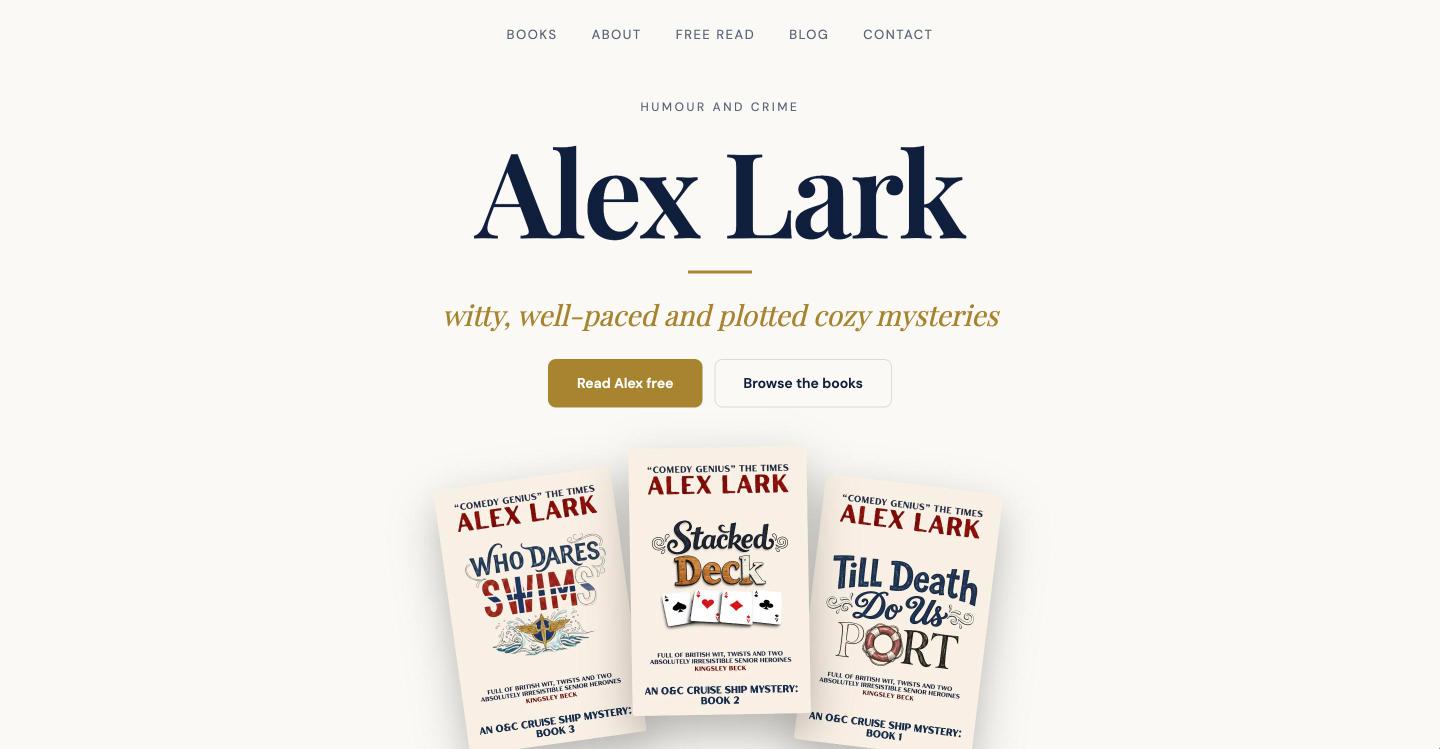
Your name, your line, your photo and your covers now sit together at the top of your site. The example below uses the Classic theme.
Good to know
- Changes can take up to five minutes to show on your site, so give the preview a moment if it looks the same.
- You can switch theme as often as you like. Your books and bio stay as they are.
- Using your own web address instead of yourname.bulletpointpublishing.com is on the same page, under Use your own web address (optional). It switches on when you subscribe.
Your next step
Give visitors a reason to join your list by giving away a free chapter to get email sign-ups.
You can try all of this free for 14 days, with no card: start at the Indie Author Toolchest.
Run it all from one place
Author page, direct sales, reader list, review copies and press kit, built from one ASIN. Free for 14 days, no card.
Start your free trial