
Indie Author Academy / Lessons
Book formatting software, tools and mistakes compared
Book formatting software compared: Kindle Create, Vellum, Atticus, Reedsy and Draft2Digital, with KDP margins, the mistakes to avoid and a pre-upload checklist.
Book formatting software turns your manuscript into the files retailers accept: an EPUB or KPF for ebooks and a print-ready PDF for paperbacks. The options are Kindle Create, Vellum, Atticus, Reedsy Studio, Draft2Digital's free tool and a plain Word file, and they differ mainly in price, the computer you need and whether they make print files.
As of 13 November 2026, the cheapest route to a clean ebook is a free tool, and the most polished print layouts come from a paid one. This guide compares each tool from the vendor's own page, lists the mistakes that make a self-published book look amateur, and ends with a checklist to run before you upload.
What file formats does KDP accept for ebooks?
KDP's help page on ebook manuscript formats recommends Microsoft Word (DOC or DOCX), Kindle Package Format (KPF) and EPUB. Word files usually convert well, but KDP says complex formatting may not survive, so you should check the result in Kindle Previewer. KPF is produced by Kindle Create. EPUB can come from any tool, provided it meets the Kindle Publishing Guidelines.
The same page lists HTML, RTF, plain text and PDF as other accepted formats, with PDF accepted only for certain languages including English. It also says that from March 2025 KDP no longer accepts MOBI files for fixed-layout ebooks. For a normal novel or non-fiction book, a reflowable DOCX, KPF or EPUB is the right choice.
Paperbacks work differently. KDP takes a print-ready PDF at your chosen trim size, and your formatting tool or word processor has to produce it with the correct margins.
Which book formatting software should you use?
Kindle Create
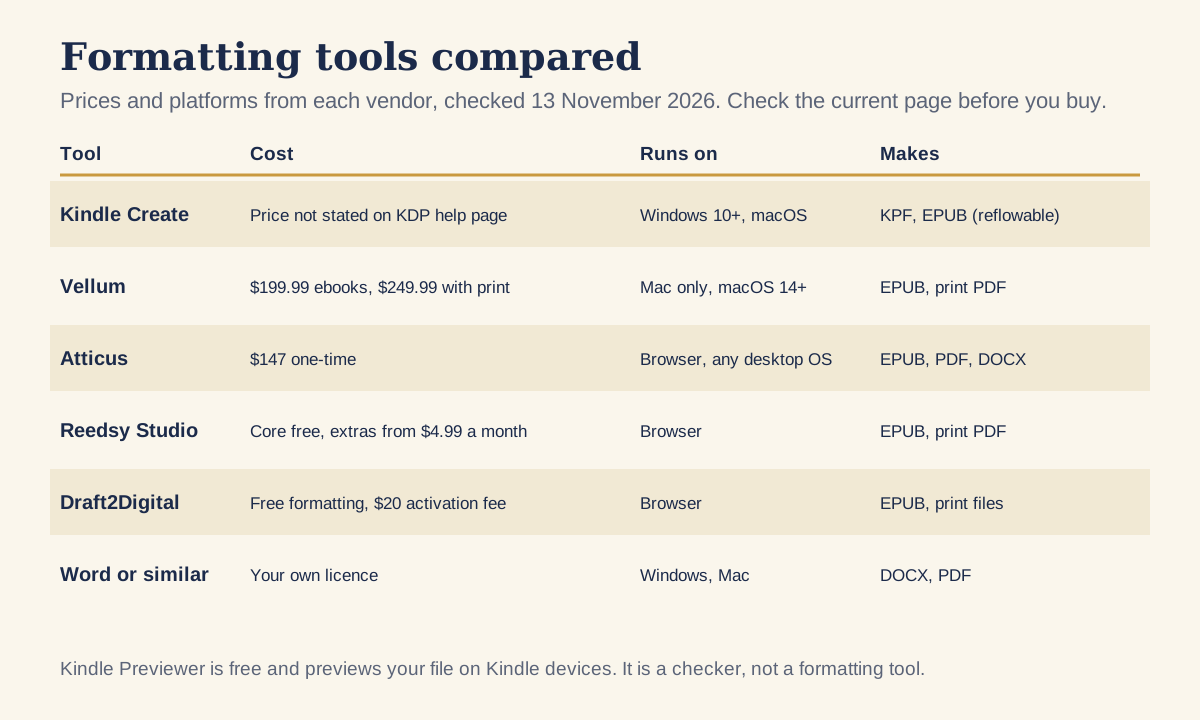
Kindle Create is Amazon's own tool. Per KDP's download page, it makes reflowable ebooks from DOC or DOCX files, print replica ebooks from PDFs and comic ebooks, and it exports KPF for KDP, plus EPUB for reflowable books only. It runs on Windows 10 or later and on Macs (macOS 10.15 or later on Intel, macOS 11 or later on Apple M1). The page does not state a price, so check the download page for current terms. It is designed for Kindle, so you will need another route for other retailers.
Vellum
Vellum's own page lists Vellum Ebooks at $199.99 and Vellum Press, which adds paperbacks and hardcovers, at $249.99, both before tax. It is Mac only, needing macOS 14 or newer, and exports EPUB for all the main stores and print PDFs in 24 trim sizes. If you do not own a Mac, it is not an option.
Atticus
Atticus costs $147 as a one-time payment according to its own site, with no monthly fee. It runs in a browser on Windows, Mac, Linux and Chromebook, writes both ebook and print files, and exports EPUB, PDF and DOCX. It offers a 30-day money-back guarantee rather than a free trial.
Reedsy Studio
Reedsy's formatting features are free. Paid tiers (Studio Essential at $4.99 a month, or Outlining at $7.99 a month) add outlining, writing statistics and dark mode, and there is a 30-day free trial of those. It runs in a browser and exports EPUB and a print-ready PDF at a trim size you choose.
Draft2Digital
Draft2Digital converts a Word file into an ebook and print files with templates. Its formatting tool remained free after the company introduced account fees in 2026. According to the Alliance of Independent Authors, new accounts pay a $20 one-time activation fee when they switch on distribution, plus a $12 annual fee that is waived if the account earned $100 or more in net royalties over the previous 12 months. Draft2Digital's own page did not list the dollar amounts when we read it, so check its FAQ.
Word or another word processor
A plain Word file costs nothing if you already own it, and it is enough for a simple novel. KDP accepts DOCX directly for ebooks, and you can export a PDF for print. The cost is time: you must set margins, styles and page breaks yourself, and mistakes are easy to make. Some authors use a writing tool and compile from it. Our guide to whether Scrivener is worth it covers one of them.
How do you check the file in Kindle Previewer?
Kindle Previewer is a free desktop program from Amazon. According to KDP Help, it runs on Windows 10 (64-bit) and above and on Macs with macOS 12 and above, and it opens EPUB, HTML, KPF, DOC and DOCX files. Word support is limited to English content.
You can view the book as a tablet, phone or Kindle e-reader, change orientation and font, and use Auto-Advance View to page through the whole book. Do that before every upload. Look at the table of contents, the first page of each chapter, images, lists and tables.
Which tool suits which author?
If you publish only on Amazon and want a free tool, Kindle Create makes a KPF file that KDP recommends, and you can use a Word file for the paperback. If you publish wide and want one file for every store, an EPUB from Reedsy Studio, Atticus or Vellum goes to all of them.
If you own a Mac and publish several books a year, Vellum's one-off price spreads over many titles. If you use Windows or Linux, Atticus is the one-time-payment option that runs there, because it works in a browser. If money is tight, Reedsy Studio and Draft2Digital cost nothing for formatting, though Draft2Digital's account fees apply when you switch on distribution.
Whatever you choose, the check is the same: open the exported file in Kindle Previewer for ebooks, and measure the margins on the exported PDF for print. A tool's preview shows what it intends to produce, and the exported file shows what you will actually upload.
What do print margins and trim size need to be?
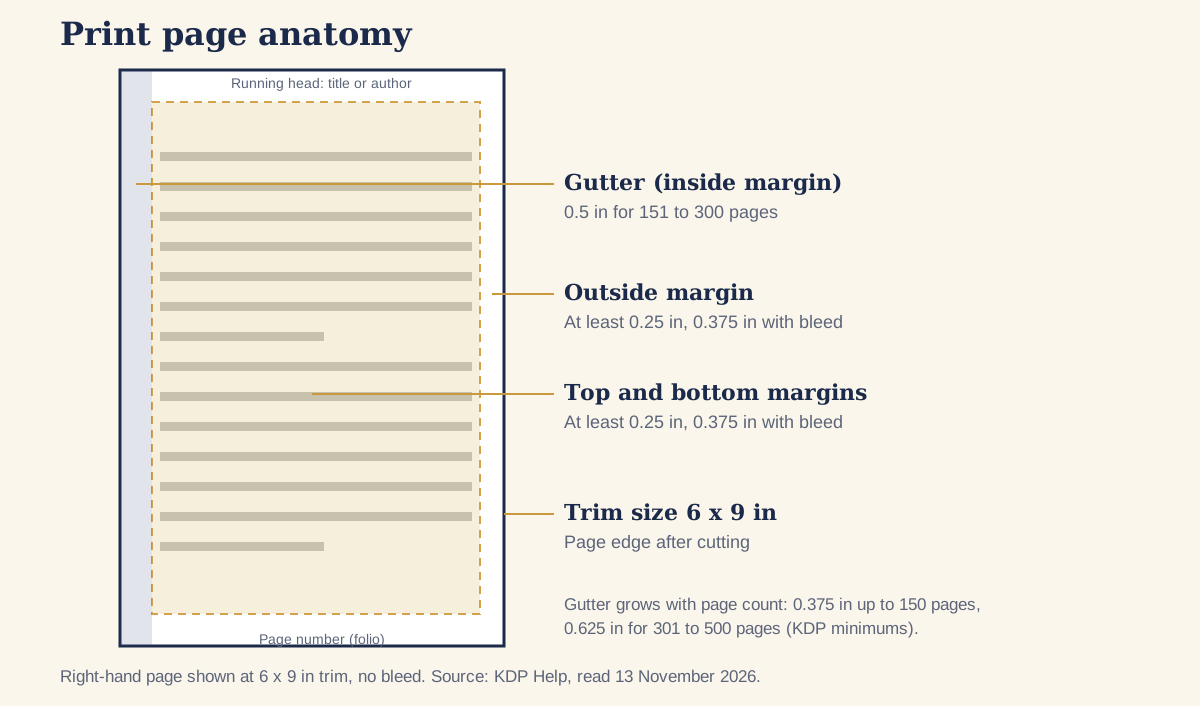
KDP's print formatting help says to choose the trim size first, because the margins depend on page count and bleed. Regular paperback sizes include 5 x 8, 5.5 x 8.5 and 6 x 9 inches, and the page ranges are 24 to 828 pages for most black and white sizes. Books wider than 6.12 inches or taller than 9 inches count as large trim and print at a different cost.
| Page count | Inside margin (gutter) | Outside margin, no bleed |
|---|---|---|
| 24 to 150 | 0.375 in | at least 0.25 in |
| 151 to 300 | 0.5 in | at least 0.25 in |
| 301 to 500 | 0.625 in | at least 0.25 in |
| 501 to 700 | 0.75 in | at least 0.25 in |
| 701 to 828 | 0.875 in | at least 0.25 in |
These are minimums. Top and bottom margins must be at least 0.25 inch without bleed. With bleed they rise to 0.375 inch on the outside, top and bottom, and bleed extends 0.125 inch past the trim. If any page needs bleed, the whole interior must be set up with it, so most novels skip bleed. Most books look better with margins larger than the minimum, particularly in the gutter, so the text does not disappear into the binding. Some software has separate inside margin and gutter fields, and KDP says to enter the same value in both.
The page count you finish with decides the gutter, and it also decides the spine width on your cover. Take the final page count from your exported PDF, then give it to your designer. Our guide to book cover design, briefs and costs shows the spine calculation.
What formatting mistakes make a book look amateur?
- Indenting paragraphs with the tab key or spaces instead of a paragraph style, which breaks when the text reflows. Set first-line indents in the style.
- Pressing Enter repeatedly to push text to the next page instead of using a page break or a heading style that starts a new page.
- Chapter headings formatted by hand, so they differ in size and position. Use one heading style and apply it everywhere.
- No indent on the first paragraph after a heading is normal. An indent on every paragraph, including after scene breaks, looks inconsistent, so pick a rule and keep it.
- Justified text with no hyphenation, which opens wide gaps between words. Either allow hyphenation or use left-aligned text.
- A single line stranded at the top or bottom of a page, called a widow or orphan. Switch on your software's widow and orphan control.
- Page numbers or running heads on blank pages and on chapter opening pages, where most printed books leave them off.
- A table of contents that is typed rather than linked, so it does nothing in an ebook.
- Missing or misplaced front and back matter. Use our copyright page template and keep the order consistent.
- A gutter that is too narrow, so the text curves into the spine of the paperback.
- Very large or high-resolution images in an ebook, which slow the file and can raise your delivery fee.
The last point deserves a check. On the 70 percent ebook royalty option KDP deducts a delivery fee that depends on file size, as our guide to KDP royalties explains.
What should you check before you upload?
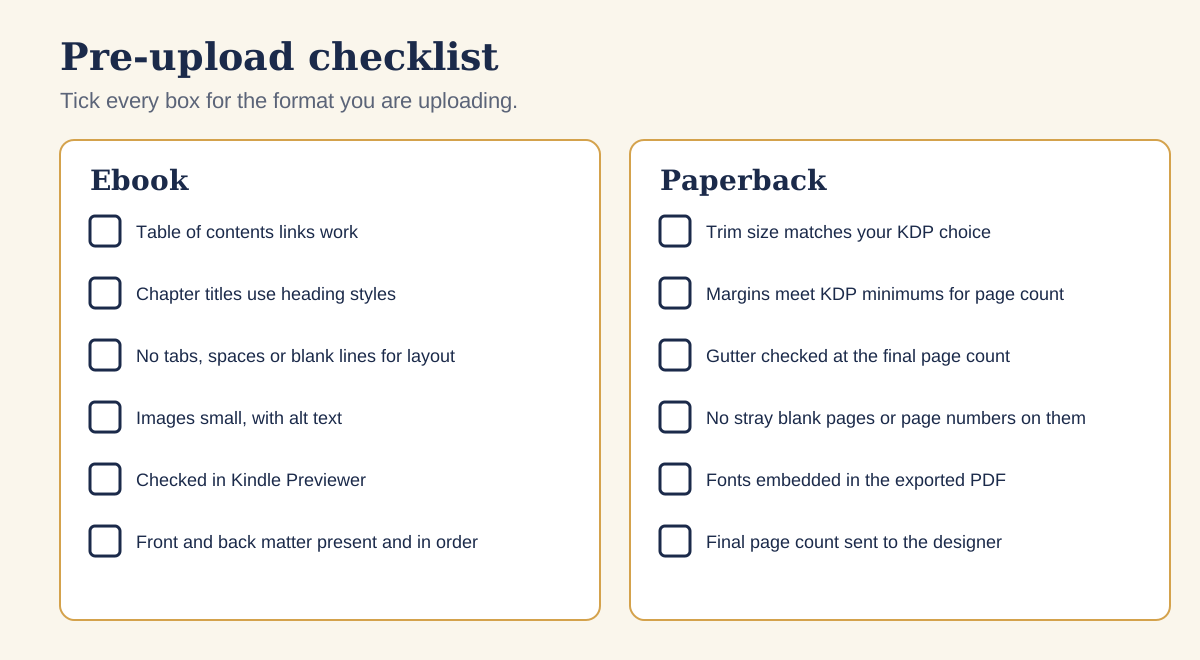
Run through the list below for each format. It finds most of the errors a reader would notice.
- Finish all edits first. Changing text after formatting can alter the page count, the gutter and the spine. See our guide to editing for self-published authors for the order.
- Export the file and open it in a different program from the one you used to make it.
- For ebooks, open it in Kindle Previewer and flip through it on the phone and Kindle views.
- For paperbacks, confirm the trim size in the PDF matches the size you chose in KDP, and the margins meet the table above.
- Read the proof on paper or a different device, since errors are easier to see away from the screen where you wrote it.
- Keep your original source file and the exported files together with the date.
Budget for formatting alongside editing and a cover. Our guide to what it costs to self-publish a book shows the whole picture, and the formatting tools above are one of the cheaper lines on it.
Questions, answered
What is the best book formatting software?
It depends on your computer and budget. Vellum is Mac only at $199.99 for ebooks or $249.99 with print, Atticus is $147 one-time and runs in any browser, and Reedsy Studio and Draft2Digital's tool are free to use, as of 13 November 2026.
Is Kindle Create free?
KDP's download page does not state a price, so check it before you download. It makes KPF files from DOC or DOCX and runs on Windows 10 or later and recent Macs.
What margins does KDP require for a paperback?
The inside margin depends on page count, from 0.375 inch for 24 to 150 pages to 0.875 inch for 701 to 828 pages. The outside, top and bottom margins must be at least 0.25 inch without bleed.
Can I upload a Word file to KDP?
Yes for ebooks. KDP recommends DOC or DOCX, KPF and EPUB, and advises checking a Word conversion in Kindle Previewer. For paperbacks you upload a print-ready PDF.
Does KDP still accept MOBI files?
KDP's help page says that from March 2025 it no longer accepts MOBI files for fixed-layout ebooks. Use DOCX, KPF or EPUB for ebooks.
Run it all from one place
Author page, direct sales, reader list, review copies and press kit, built from one ASIN. Free for 14 days, no card.
Start your free trial