
Give away ebooks at events with printed codes
Make one-time download codes in the Indie Author Toolchest, print postcards with a QR code for signings, and add an Amazon table postcard for your book table.
By the end of this guide you will be able to hand a reader a printed card at a signing or a book table, and have them download your ebook by typing a code or scanning a QR code. Each code works once, so you always know how many copies went out.
Upload the ebook file and a cover image for the book first, under My books. The postcards need the cover. Codes work during your 14 day free trial.
Make your codes
- Sign in and select Reviews and press in the menu on the left, then Codes for events.
- In Generate codes, pick your book from Book.
- In How many, enter the number of codes. You can make up to 200 in one go.
- Select Generate codes.
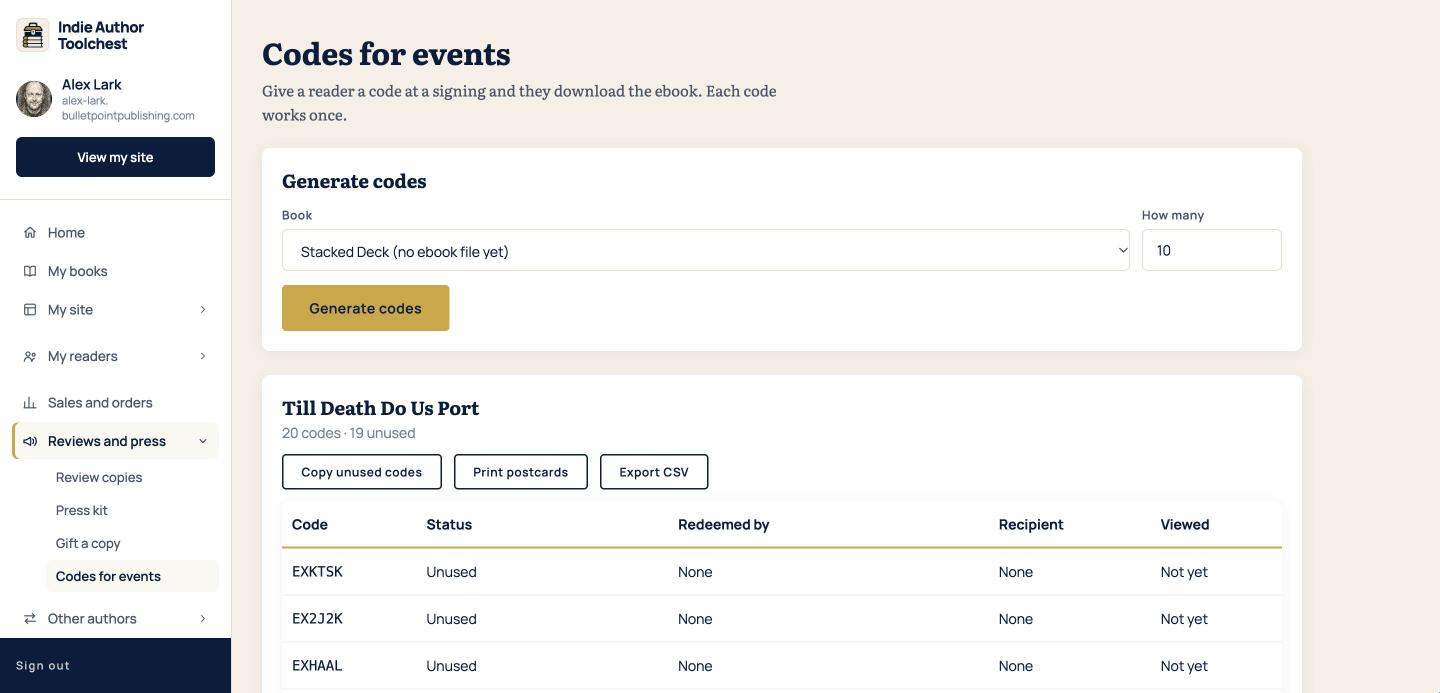
The codes you make now have eight characters, and each one works once. Your book gets its own table, listing every code with its status, who redeemed it, the recipient and whether the download has been viewed. The buttons above the table are Copy unused codes, Print postcards and Export CSV.
Print your postcards
- Above the book's table, select Print postcards.
- Check the preview. Your cover sits on one half. The other half has a QR code, one code and the web address to visit.
- Select Download postcard PDF and print it.
The PDF holds one 6 by 4 inch postcard for each unused code. If you would rather use your own cards, select Copy unused codes or Export CSV and take the codes from there.
How a reader redeems a code
The reader scans the QR code, or visits yourname.bulletpointpublishing.com/code and types the code from the card. The page is called Redeem your code. It has a box for the code, a box for an email address that the reader can leave empty, and a Get my copy button.
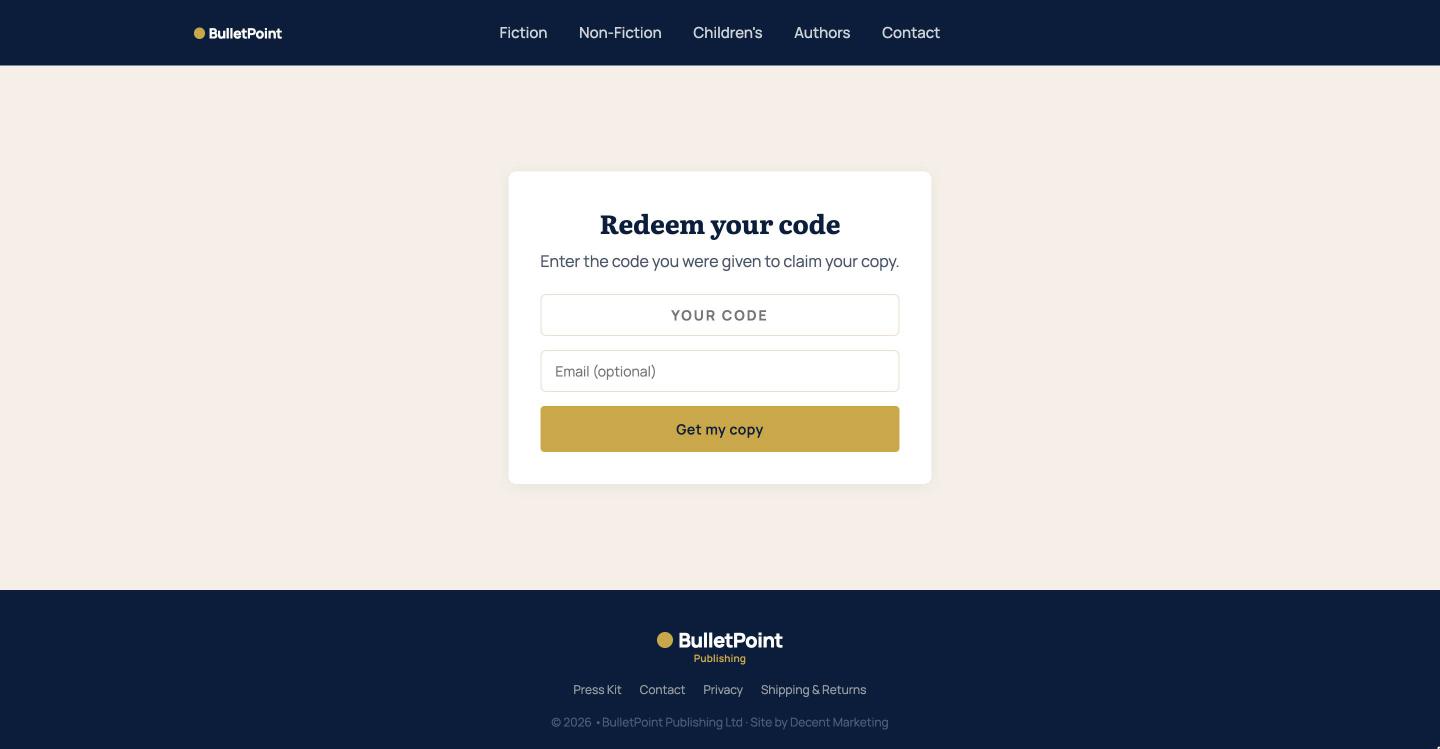
The reader then downloads the book. The download link lasts 14 days. Back in your dashboard, the table shows which codes are still unused and who redeemed the rest.
Put a table postcard out for Amazon
Codes give the ebook away. If you would rather send buyers to Amazon, the same page has a postcard for that.
- Scroll down to Table postcards and find your book.
- Select Ebook postcard (Amazon). If the book has an audiobook, there is an audiobook postcard too.
- Pick a size: 6 by 4 inches, A5, 5 by 7 inches or A4.
- Download the PDF and print it.
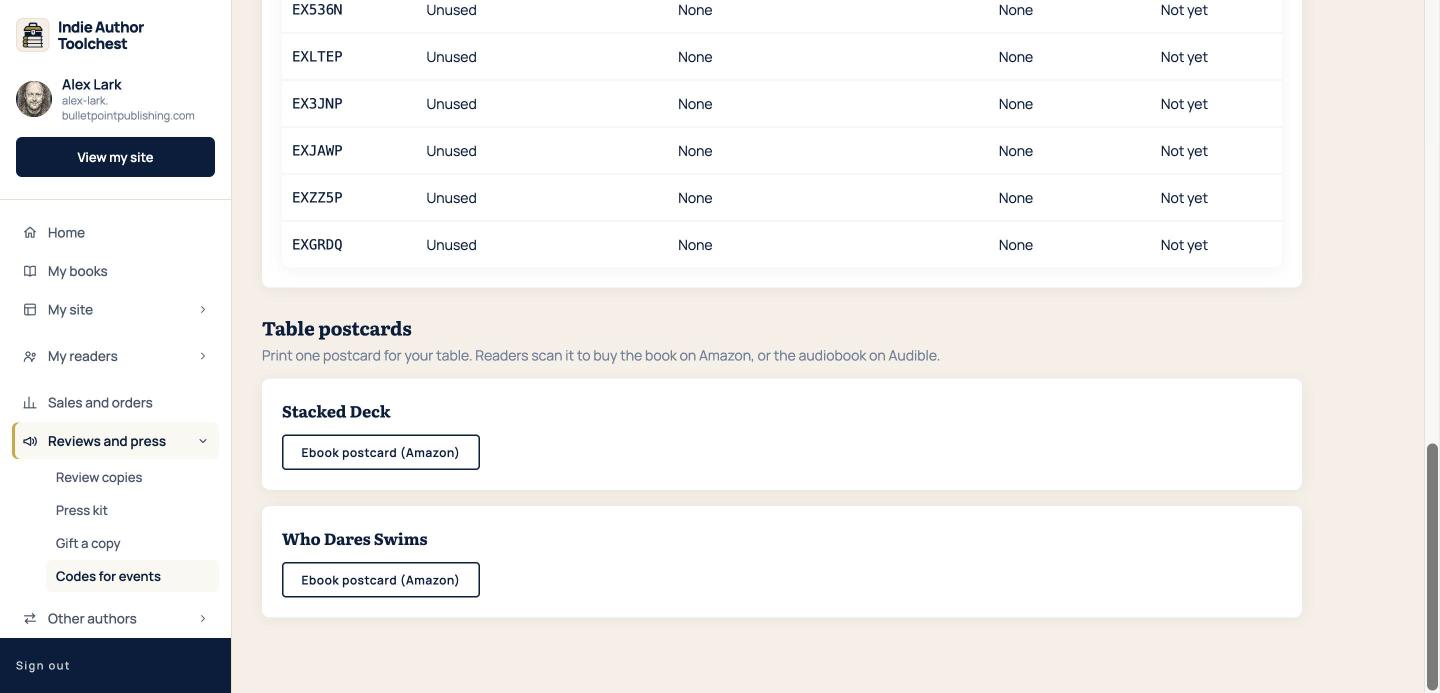
A table postcard is reusable, so you can print as many as you like. Readers scan it to buy the book on Amazon and pay Amazon directly. The book needs a cover, and either an Amazon code (ASIN), an Amazon link or an audiobook. If you have added your Amazon Associates ID, you earn the commission on a sale. If you have not, the postcard carries the Toolchest's ID.
Good to know
If a book is in KDP Select, Amazon does not allow the ebook to be given away anywhere else. Tick Enrolled in Kindle Direct Publishing Select on the book under My books, and Codes for events shows a warning for it and points you to the table postcard. The tick is a reminder, and you decide what to switch off. Our lesson on KDP Select and selling direct explains the rule.
Next step
A table is also a place to collect email addresses. Make a QR code from your sign-up link, as shown in Give away a free chapter to get email sign-ups, and put it beside your postcards. Our lesson on your first 100 subscribers says what to expect from an event.
You can try all of this free for 14 days. Start with the Indie Author Toolchest.
Run it all from one place
Author page, direct sales, reader list, review copies and press kit, built from one ASIN. Free for 14 days, no card.
Start your free trial