
Let readers contact you through your website
Every Indie Author Toolchest site has a contact form. See what readers fill in, where their message arrives, how to reply and how to change the address.
By the end of this guide you will know how readers can write to you from your author website, where their message lands and how to reply, so you can hear from readers without putting your email address on the page.
The contact form is part of every site, so there is nothing to switch on. A reader finds it in the menu, fills in three boxes and clicks one button. You receive their message as an ordinary email and answer it the same way you answer any other.
What a reader sees
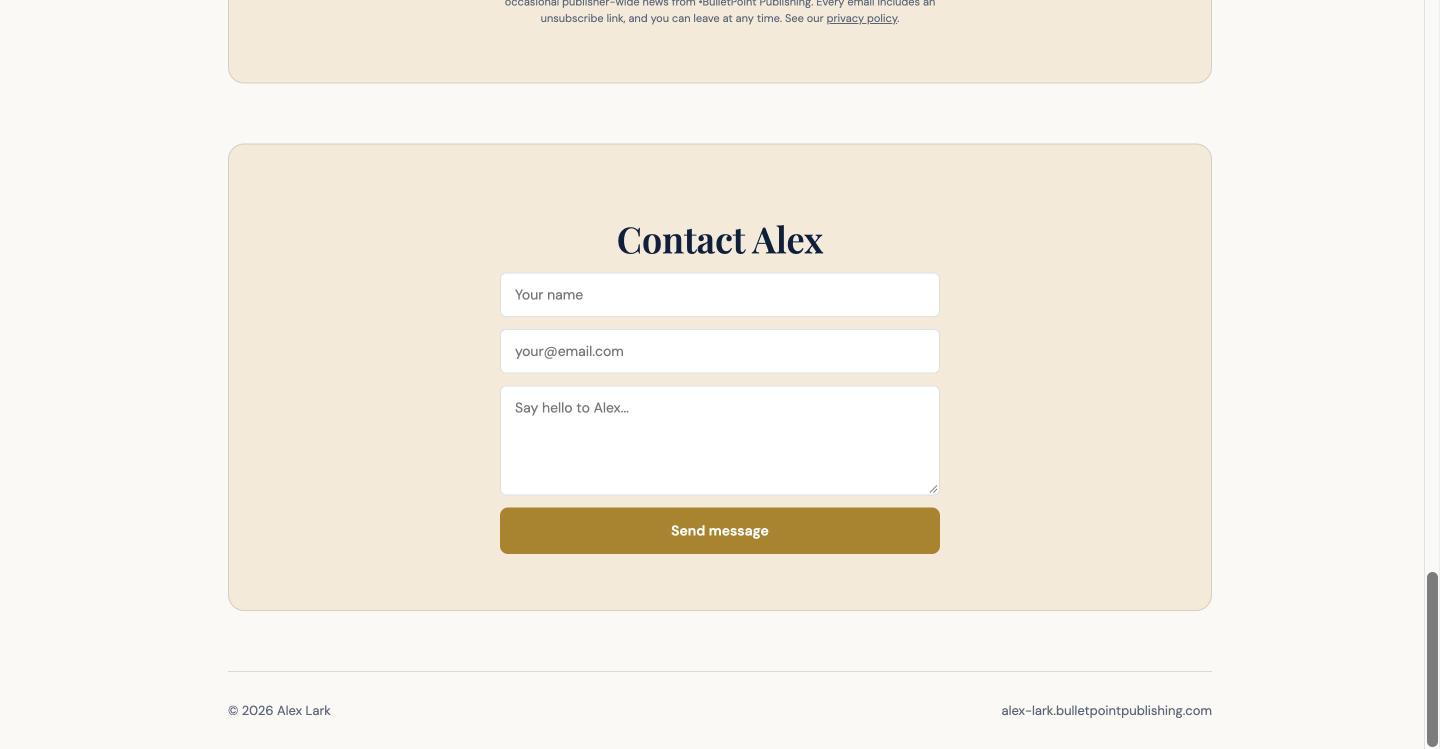
Your site menu has a Contact link, which takes the reader to the bottom of the page. The form there is headed with your first name, such as Contact Alex.
- The reader types their name into Your name.
- They type their email address into your@email.com.
- They write a message in the large box, which starts with Say hello to and your first name.
- They click Send message.
A box then replaces the form, headed Message sent., saying you will get back to them by email.
Where the message goes
The message is emailed to the address you log in with. The subject is A reader message via your site. The email gives the reader's name and email address and their message.
The reader never sees your address. It stays on our side and is not in the page, so you can send people to your site instead of publishing an email address.
Reply to a reader
- Open the email in your inbox.
- Click reply. The reply goes straight to the reader, because their address is the reply address.
- Write your answer and send it.
Your reply comes from your own email account, so the reader sees your address once you answer.
Change where messages arrive
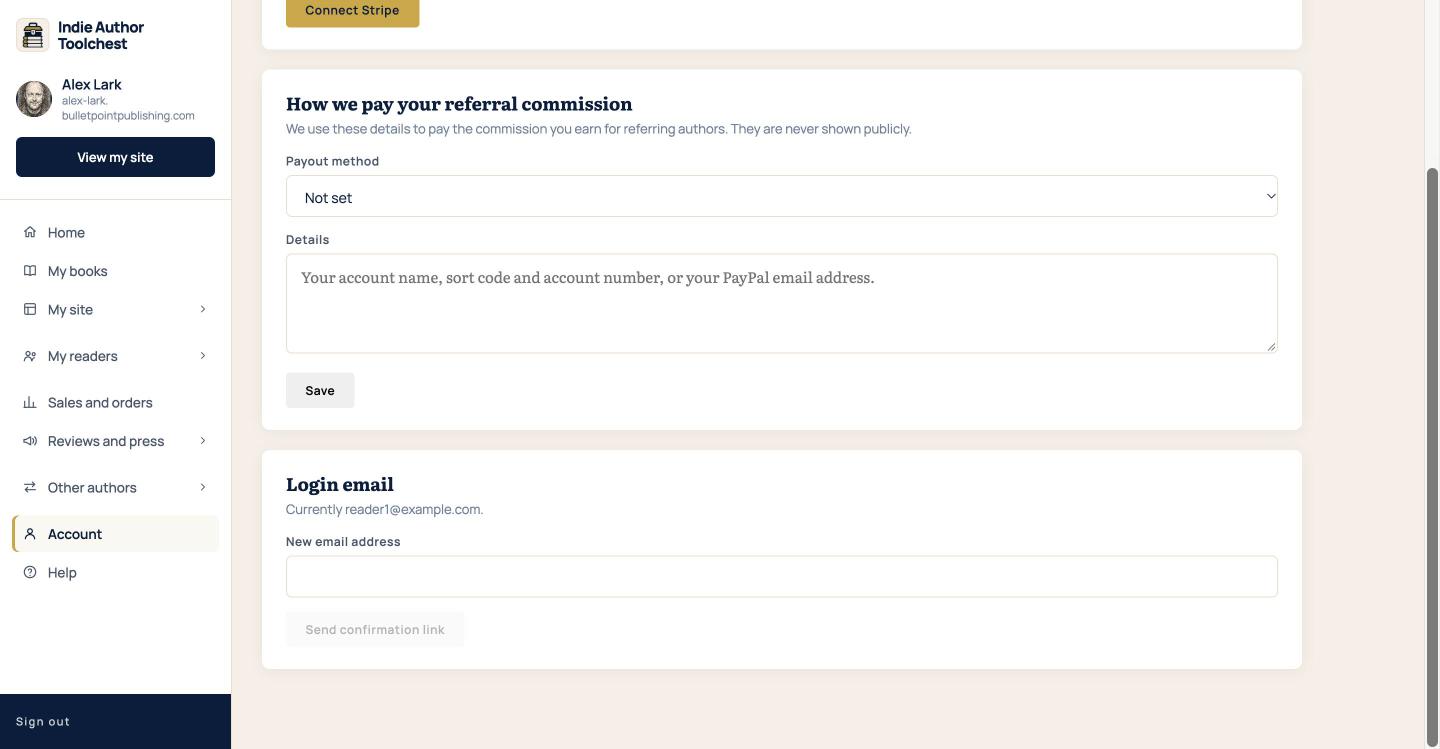
Messages follow your login email. To move them, open Account in the dashboard menu and scroll to Login email. Type the new address into New email address and click Send confirmation link, then click the link we email to the new address.
Your login email also changes. Change your login email walks through it.
Good to know
- A reader can send up to five messages an hour.
- A message can be up to 5,000 characters. Longer text is cut off.
- The reader has to fill in all three boxes before the form will send.
- If a message fails to send, the reader sees a line asking them to try again.
- Replies happen in your email program. The Toolchest does not keep a copy of the conversation.
Your next step
Check the form yourself: click View my site, send yourself a message and reply to it. If you are still planning your site, one book, six pages lists the pages worth having. Then add Google Analytics to your author website to see how many people visit.
You can try all of this free for 14 days, with no card: start at the Indie Author Toolchest.
Run it all from one place
Author page, direct sales, reader list, review copies and press kit, built from one ASIN. Free for 14 days, no card.
Start your free trial