
Change your login email
Learn how Indie Author Toolchest sign-in works with an emailed login link and no password, and how to change your login email so you keep your access.
By the end of this guide you will be able to move your Indie Author Toolchest login to a new email address, so you keep your access when your address changes.
Your login email is the address the Toolchest sends your sign-in link to. Changing it takes one screen and one click in your inbox.
How signing in works
The Toolchest has no password. Each time you sign in, it emails you a link, and the link opens your dashboard.
- Go to indieauthortoolchest.com/login.
- Type your login email into the Email box.
- Click Send my login link.
- Open the email and click the link. Your dashboard opens.
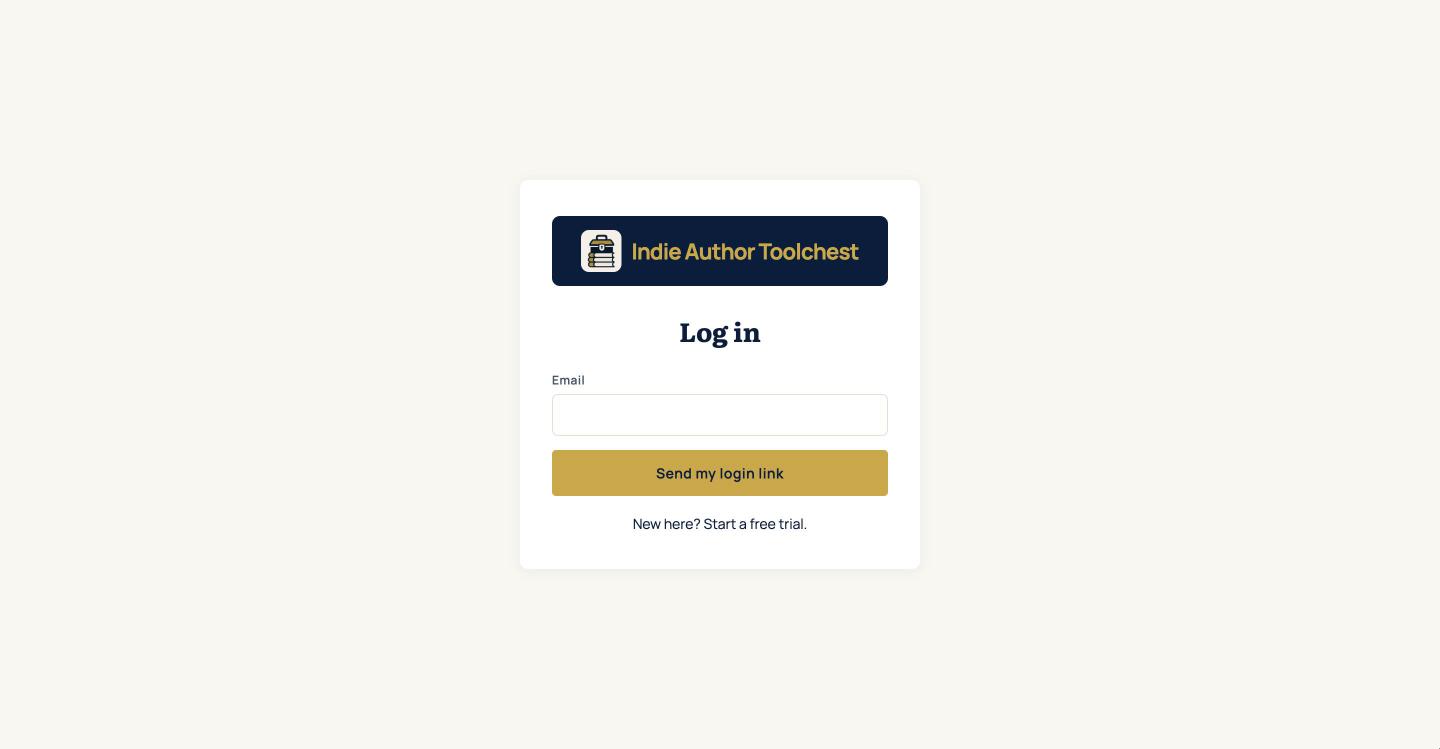
Your login email protects your site and your reader list, which you own. If you ever want a copy of that list, you can download your data from the same Account screen.
With no password to remember, there is nothing to reset. When you want in, you ask for a new link at the same screen. The new-here link on that page, Start a free trial, is for authors who have not joined yet, so existing members can ignore it.
Change your login email
- Sign in, then click Account in the dashboard menu.
- Scroll down to the box headed Login email. It shows your current address after the word Currently.
- Type your new address into New email address.
- Click Send confirmation link.
- Open the email we send to your new address and click the link in it.
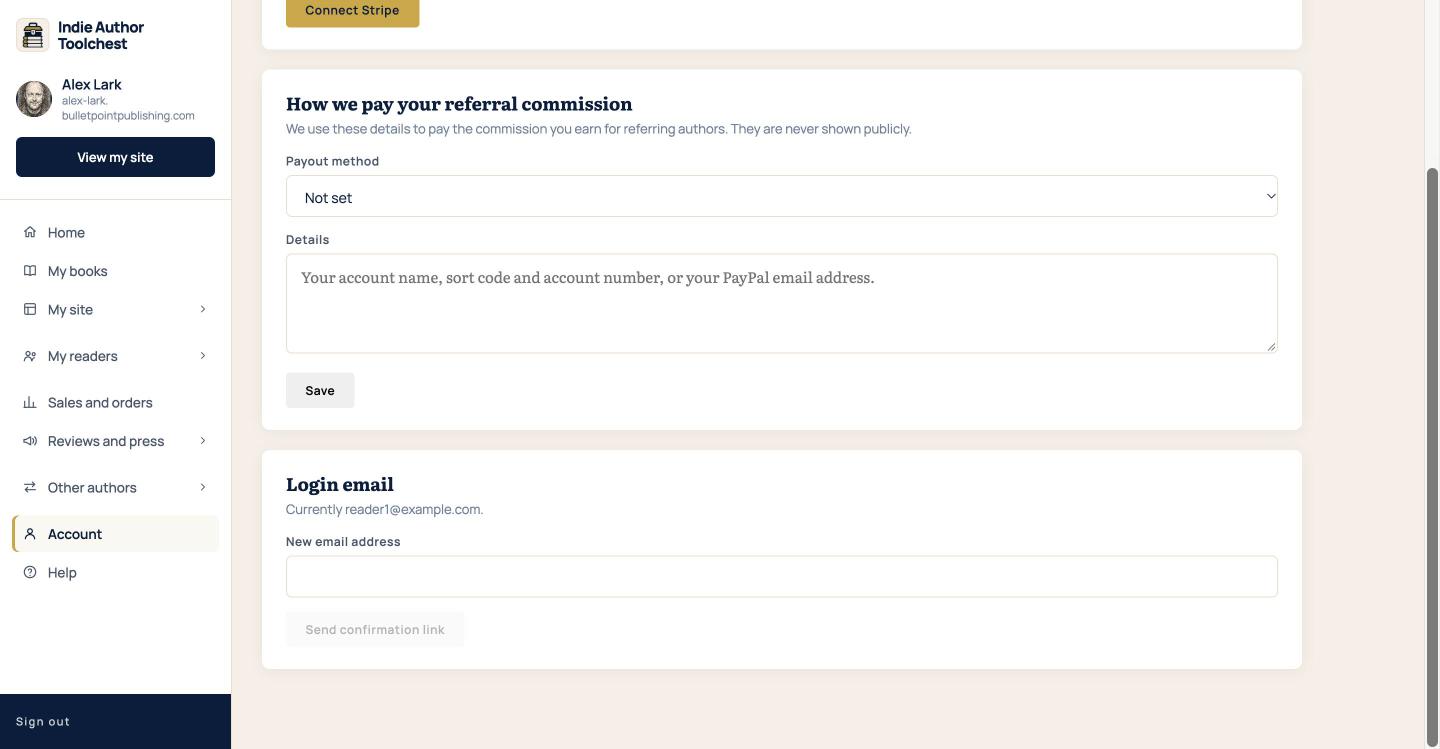
Your login email changes as soon as you click that link. From then on, ask for your login link at the new address.
Check the new address works
A quick test shows you the change went through, before you need to sign in for real.
- Click Sign out at the bottom of the dashboard menu.
- Go back to indieauthortoolchest.com/login.
- Type your new address into Email and click Send my login link.
- Open the email at your new address and click the link. Your dashboard opens.
If you reach your dashboard, you are finished. Keep using the new address from now on.
When the email does not arrive
Give it a minute, then look in your spam or junk folder. Search your inbox for the word Toolchest too. If you typed the new address wrongly, return to Account and send a new confirmation link to the right one.
Each confirmation link goes to the address you typed, so a typing slip sends the email to the wrong inbox. Read the address once more before you click Send confirmation link.
Good to know
- You can ask for up to 5 confirmation links an hour.
- If the email does not arrive, check your spam folder.
Your next step
Stay on Account and read about changing your plan, updating your card or cancelling.
You can try all of this free for 14 days, with no card: start at the Indie Author Toolchest.
Run it all from one place
Author page, direct sales, reader list, review copies and press kit, built from one ASIN. Free for 14 days, no card.
Start your free trial