
Post news on your author blog
Write a news post in the Indie Author Toolchest, publish it, edit or delete it later, and see where readers find the Blog link and blog page on your author site.
By the end of this guide you will have a news post on your author site, with a Blog link in your site's menu that takes readers to it. A post is a good place for a launch, a cover reveal or an event, written in your own words and kept on a site you own.
Write and publish a post
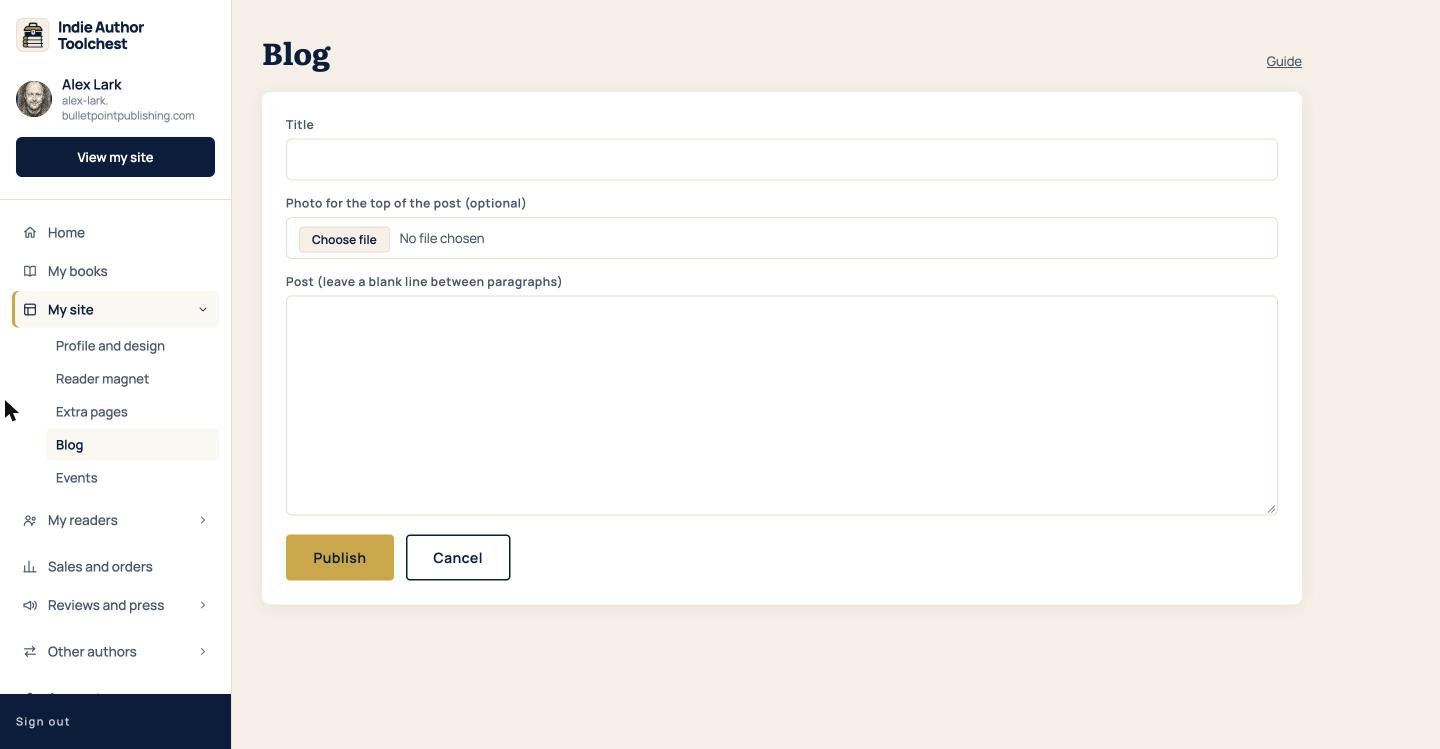
- Sign in and select My site in the menu on the left, then Blog.
- Select New post.
- Type a headline into Title.
- If you want a picture at the top of the post, select Choose file under Photo for the top of the post (optional) and pick an image.
- Write your news in Post (leave a blank line between paragraphs). Press Enter twice at the end of a paragraph to leave the blank line.
- Select Publish.
A post goes live on your site as soon as you save it, so read it through before you select Publish.
Where readers find your blog
Once you have at least one post, a Blog link appears in the menu of your author site. Readers who select it arrive on your blog page, at yourname.bulletpointpublishing.com/blog with your own name in place of yourname. The page is headed From the Blog and shows your posts in full, newest first, each with its date, headline and photo.
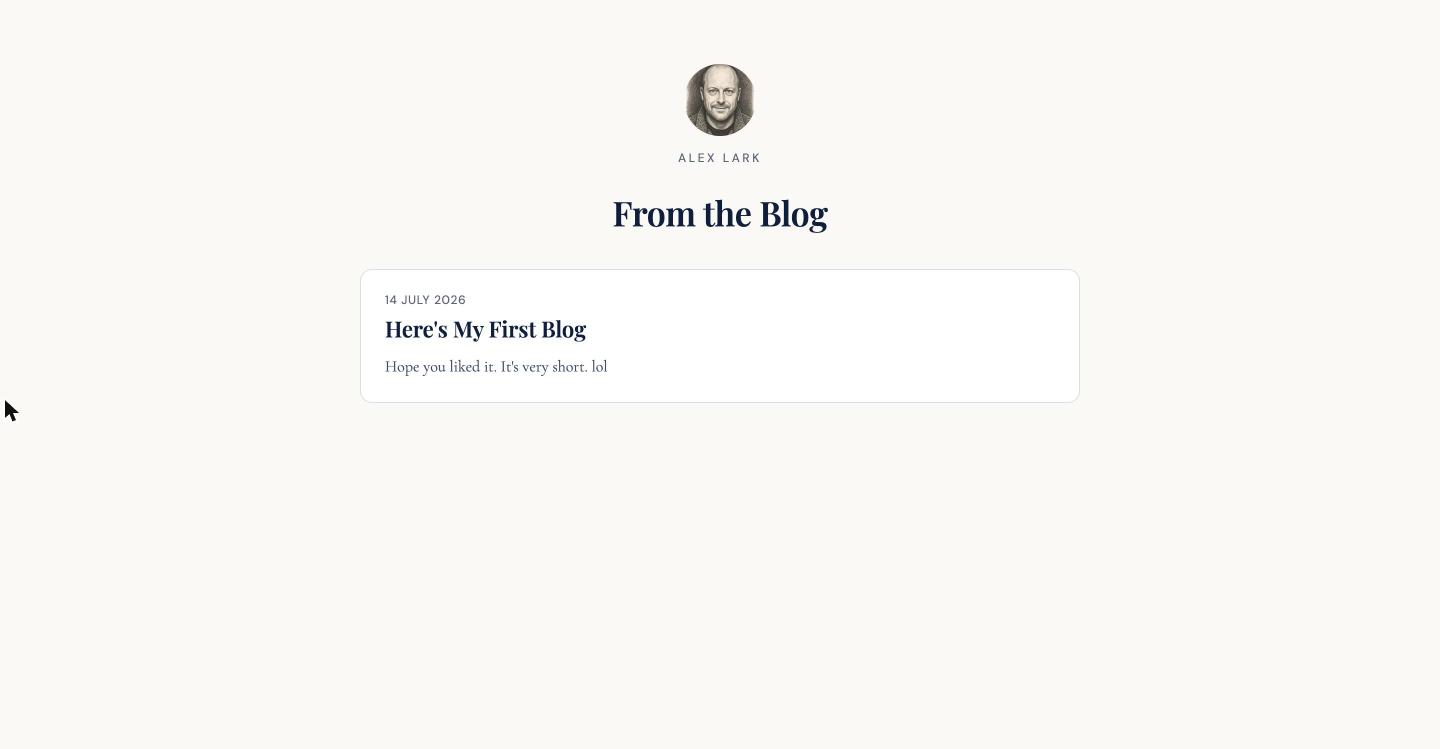
You can open it yourself with View my site at the top of the dashboard menu, then the Blog link. While you are signed in, a bar at the top of the blog page links straight back to your posts.
Edit or delete a post
Every post you write is listed on the Blog screen with its date, an Edit button and a Delete button.
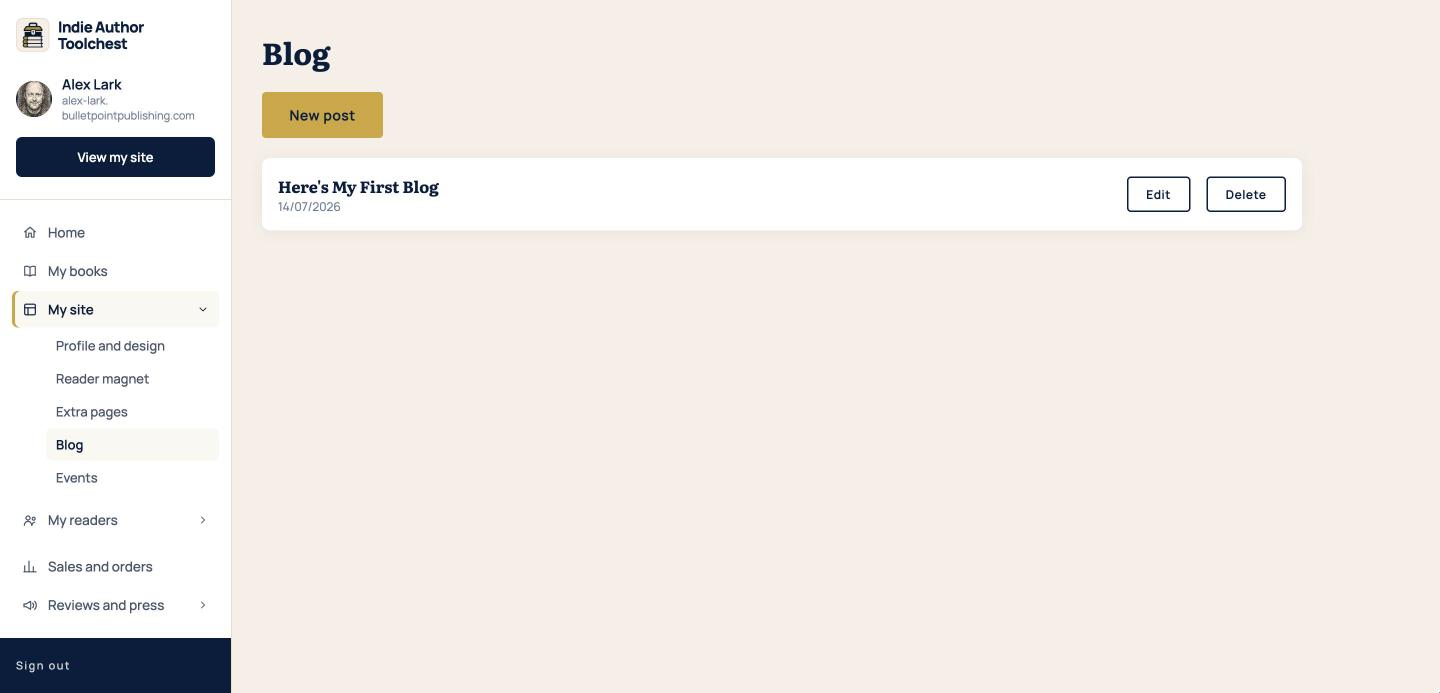
- Select Edit beside the post.
- Change the title, the photo or the text. Choosing a new photo replaces the current one.
- Select Publish to save your changes. They show on your site straight away.
To remove a post, select Delete and confirm when the box asks about it. The post leaves your blog page.
What to post
A launch, an event and a cover reveal each make a complete post.
- Launch news: the title, the date and where readers can get the book.
- An event: where you will be, when, and what you will be doing there.
- A cover reveal: the cover as your photo, with a few lines about how it came about.
Our lesson on author website SEO basics covers how readers find an author site through search.
Hide the blog
The blog is on by default. To hide it, select My site, then Profile and design, and untick Show the Blog section on my site. Select Save changes. The Blog link and the blog page disappear from your site, and your posts stay on the Blog screen. Tick the box again and select Save changes to bring them back.
Good to know
- The Blog link shows only when you have at least one post and the box above is ticked.
- The blog page lists your 50 newest posts.
- Posts are text with an optional photo at the top.
Next step
Add a post about your next book launch, then read List book signings and launches on your website to put the date and place on its own page.
You can try all of this free for 14 days. Start with the Indie Author Toolchest.
Run it all from one place
Author page, direct sales, reader list, review copies and press kit, built from one ASIN. Free for 14 days, no card.
Start your free trial