
See your book sales and refund a reader
See what you earned from direct book sales, download your statement, mark paperbacks as posted and refund a reader from your Stripe dashboard. Free for 14 days.
By the end of this guide you will be able to see every direct sale of your books, work out what you earned after the card fee, mark paperback orders as posted and refund a reader.
The Toolchest shows your sales on the Sales and orders page, and refunds are made in your own Stripe dashboard. Readers pay on your Stripe account, so Stripe holds the payment records and pays you, and the Toolchest keeps a matching list so you can see your orders next to your books. If you have not connected Stripe yet, start with Connect Stripe to get paid for direct book sales.
See what you have earned
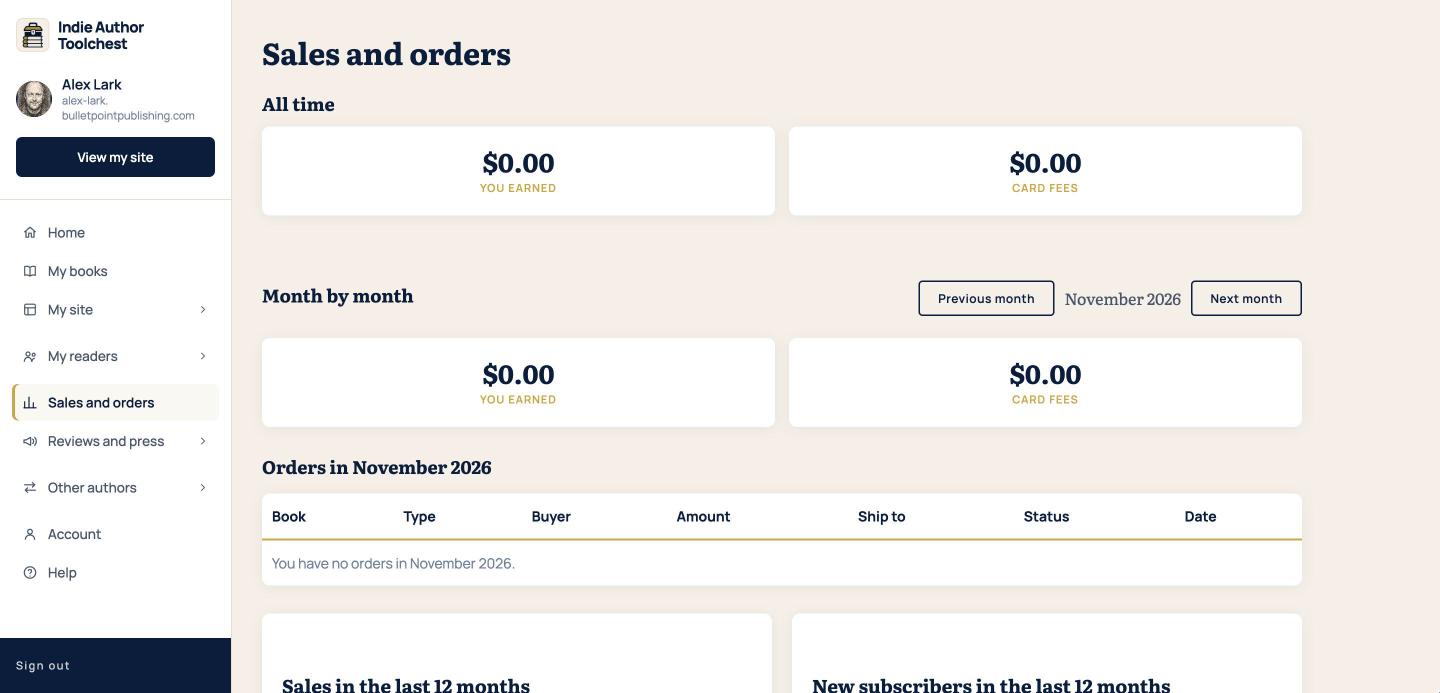
- Click Sales and orders in the menu.
- Under All time, read You earned and Card fees. You earned is what your sales paid you after Stripe's card fee.
- Under Month by month, click Previous month or Next month to move between months.
Download your sales for your records
Click Download sales for a spreadsheet with a row for each order, or Download statement for the totals. Each button appears once you have a sale, and each comes in an all-time version and a version for the month on screen. Keep them with your other tax records.
Post paperback orders
Under Orders in the month, each row shows the book, whether it is an ebook or a physical copy, the buyer's email, the amount and, for paperbacks, the address to post to. After you post a copy, click Mark posted beside the order. An ebook order shows Delivered once its download email has gone out.
Keep up with the posting. If paperback orders stay unposted, the Toolchest pauses your paperback sales until you mark them as posted.
Refund a reader
- Click Account in the menu, then click Open Stripe in the How you get paid box.
- In Stripe, search for the reader's email address and open their payment.
- Use the refund button on the payment page and follow Stripe's prompts.
Stripe's own page on refunds explains the options, including partial refunds.
A full refund marks the sale as refunded in the Toolchest, and the order drops out of your orders list and your totals. Refunding a paperback puts its stock back. A partial refund leaves the sale in place, because you still delivered the book. A reader who disputes a payment with their bank is treated like a full refund: the sale is marked refunded and drops out of your totals.
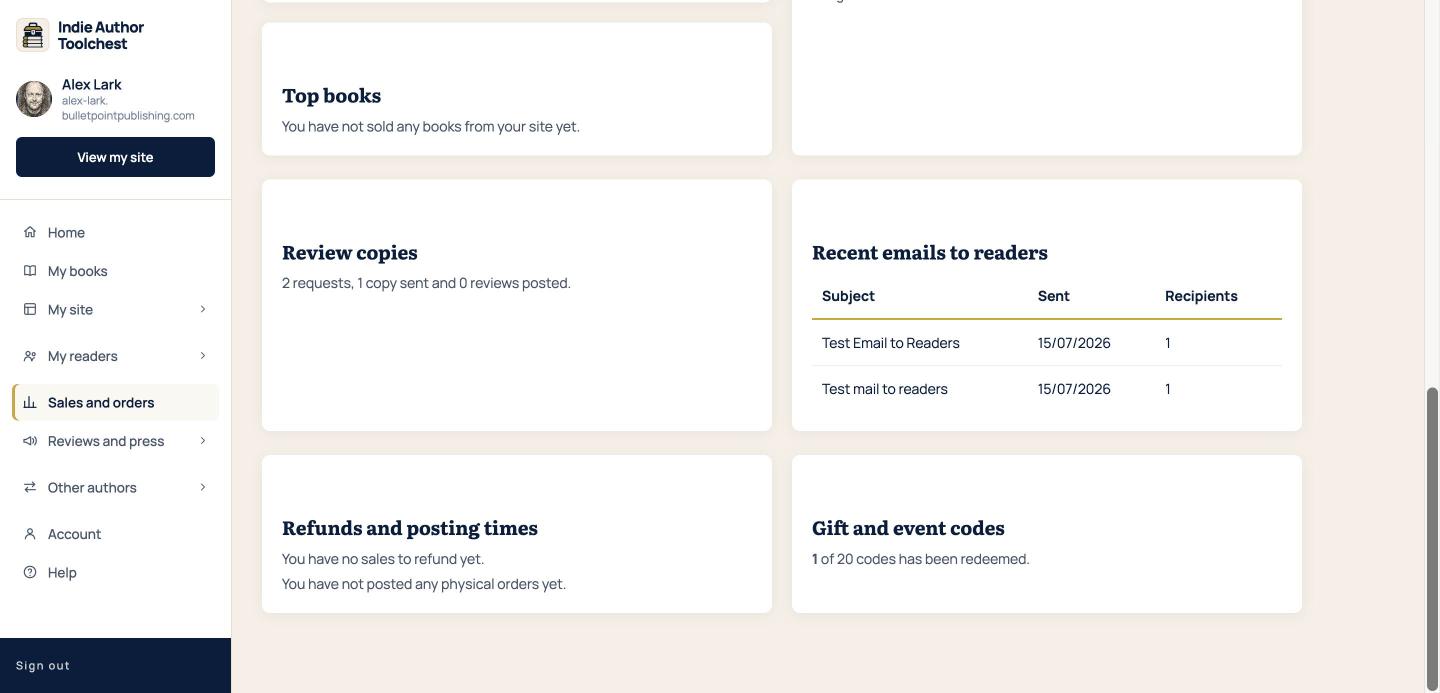
Scroll to Refunds and posting times at the bottom of Sales and orders to see how many of your sales were refunded and how many days you take to post an order.
Where the money goes
Stripe pays your sales into the bank account you gave it, on the schedule set for your Stripe account. The first payout can take longer than later ones, and your Stripe dashboard shows the dates. Stripe's guide to payouts explains the schedule. To check the sum behind a paperback sale first, use our lesson on how to sell signed paperbacks direct from your own website.
Questions, answered
Does Sales and orders show what Stripe has paid into my bank?
It shows what each sale earned after the card fee. Payout dates and amounts are in your Stripe dashboard, because Stripe pays you on its own schedule.
Can I refund a reader from the Toolchest?
Refunds are made in your Stripe dashboard. The Toolchest updates itself once Stripe records the refund, and the sale drops out of your totals.
Why did a sale disappear from my orders list?
A sale that was refunded in full, or disputed with the bank, is marked refunded and no longer appears in the list or the totals. The Refunds and posting times box counts it.