
Link Apple Books, Kobo and other stores from your book page
Add Apple Books, Kobo, Google Play Books and Barnes & Noble links to your book in the Indie Author Toolchest so each one becomes a buy button on your book page.
By the end of this guide your book page will have buttons that send readers to Apple Books, Kobo, Google Play Books and Barnes & Noble, so a reader who shops in one of those stores can go straight there. You paste a link for each store, and every link you fill in becomes a button.
You need the web address of your book in each store where it is on sale. If your ebook is not in those stores yet, our lesson on getting your book into Apple Books, Kobo, Google Play and Barnes & Noble covers how to get it there. You can add books and fill in their links during your 14 day free trial.
Open your book
- Sign in and select My books in the menu on the left.
- Find your book in the list and select Edit.
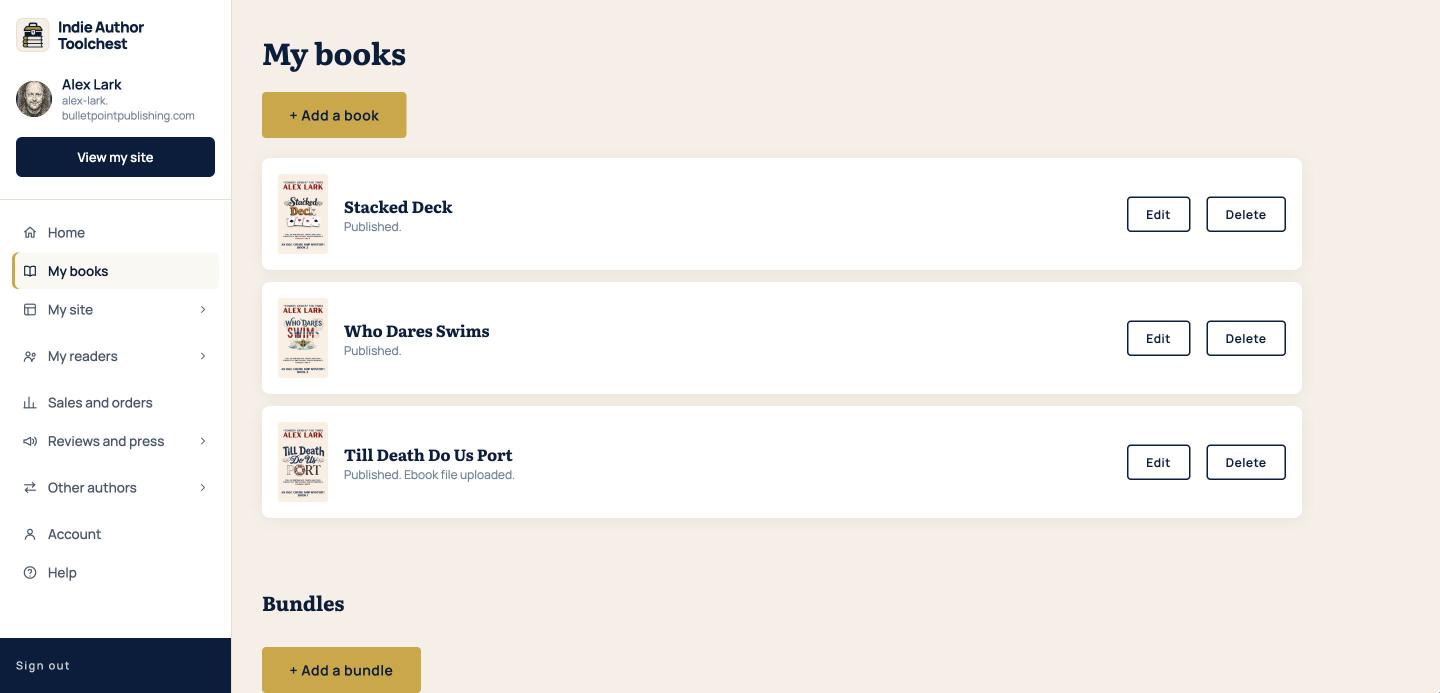
The book form opens with your title, cover, blurb and the rest of the details you entered when you added the book. Scroll down to the part headed Also available at.
Paste your store links
- Open your book's page in the store, for example on Apple Books, and copy its web address from your browser.
- Under Also available at, paste it into the matching box: Apple Books link, Kobo link, Google Play Books link or Barnes & Noble link.
- Repeat for each store that sells your book. Leave a box empty if your book is not in that store.
- Select Save book at the bottom of the form.
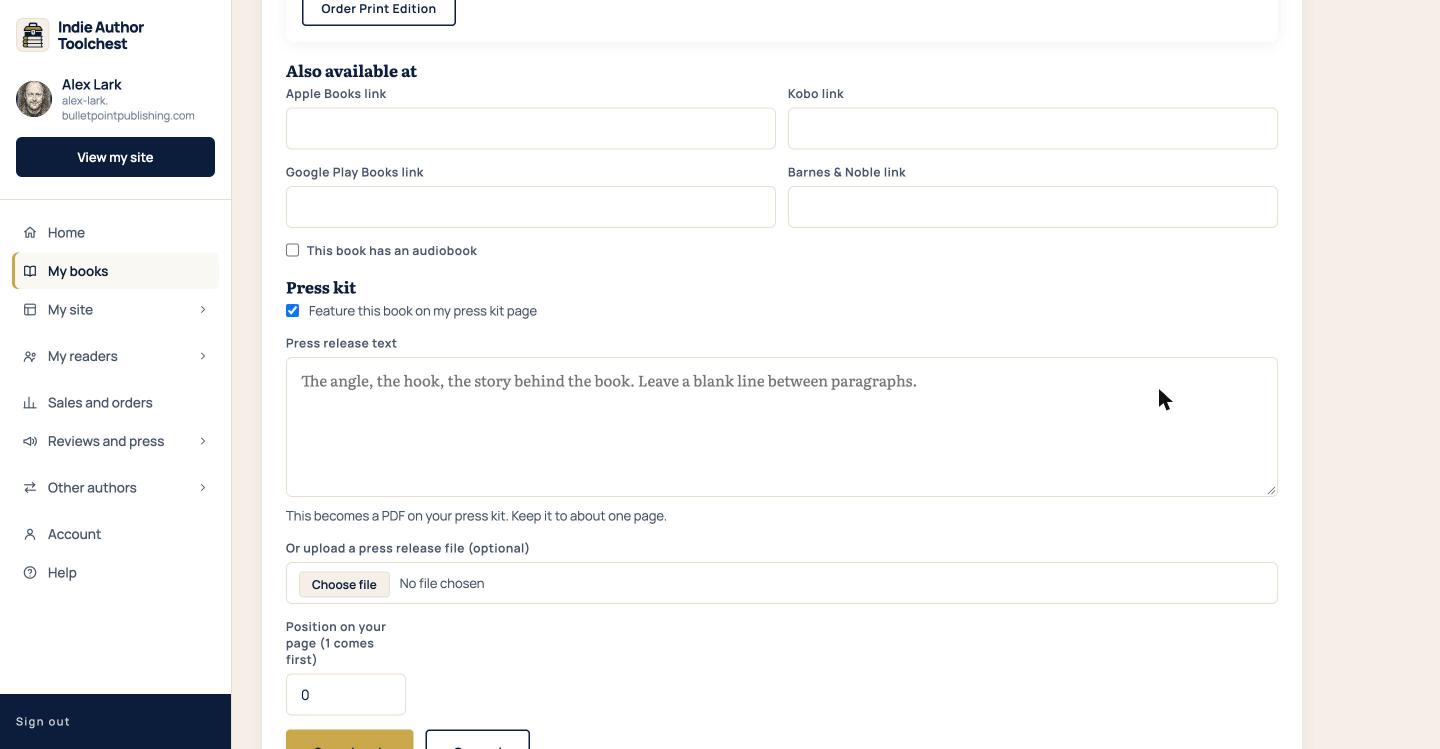
Each box works on its own. You can fill in one store today and add the others when your book reaches them. The This book has an audiobook tick box just below belongs to the next guide.
See the buttons on your book page
Select View my site at the top of the left-hand menu, open your book, and look at the buttons under the tagline. A store you filled in shows a button named Apple Books, Kobo, Google Play or Barnes & Noble. Each one opens the store in a new tab, so the reader keeps your page open behind it.
A box left empty shows no button. The example below is a book with no store links filled in, so it has only its Amazon button. Every store link you add puts another button alongside it.
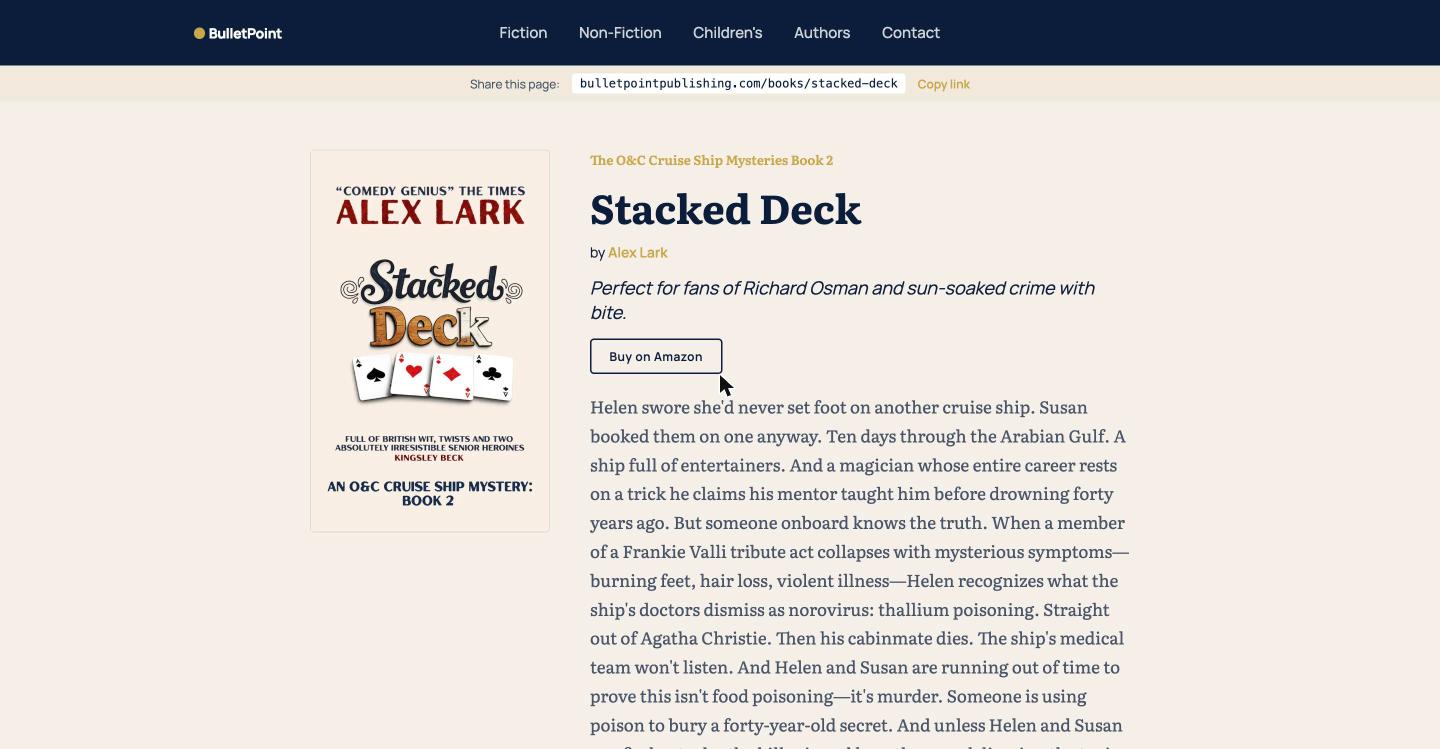
Changes can take up to five minutes to show on your public page, so refresh it if a new button is missing straight after you save.
Good to know
Store buttons appear once a book is live. A book with its status set to Coming soon shows no store buttons until you change the status to Published, so add the links ahead of time and publish when the book is on sale.
Amazon has its own place on the form, under How readers get this book, and its own guide.
Next step
If your book has an audiobook, read Add your audiobook to your book page to put a listen button beside these.
You can try all of this free for 14 days. Start with the Indie Author Toolchest.
Run it all from one place
Author page, direct sales, reader list, review copies and press kit, built from one ASIN. Free for 14 days, no card.
Start your free trial