
Offer print on demand copies from your book page
Add a Lulu, IngramSpark, Bookvault or other print store link to your book in the Indie Author Toolchest, with a button label you choose and a preview.
By the end of this guide your book page will have a button, with a label you choose, that takes readers to a print store such as Lulu Direct, IngramSpark or Bookvault. The store takes the payment, prints the book and posts it, so you can offer paperbacks without holding stock.
You need your paperback to be on sale in the print store already, with a web address for it. If you are still choosing a store, our lesson comparing IngramSpark and KDP sets out what each one costs and how they work.
Find the print-on-demand section
- Sign in, select My books, then select Edit next to your book.
- Scroll down to the heading Print-on-demand link. It comes after How readers get this book and before Also available at.
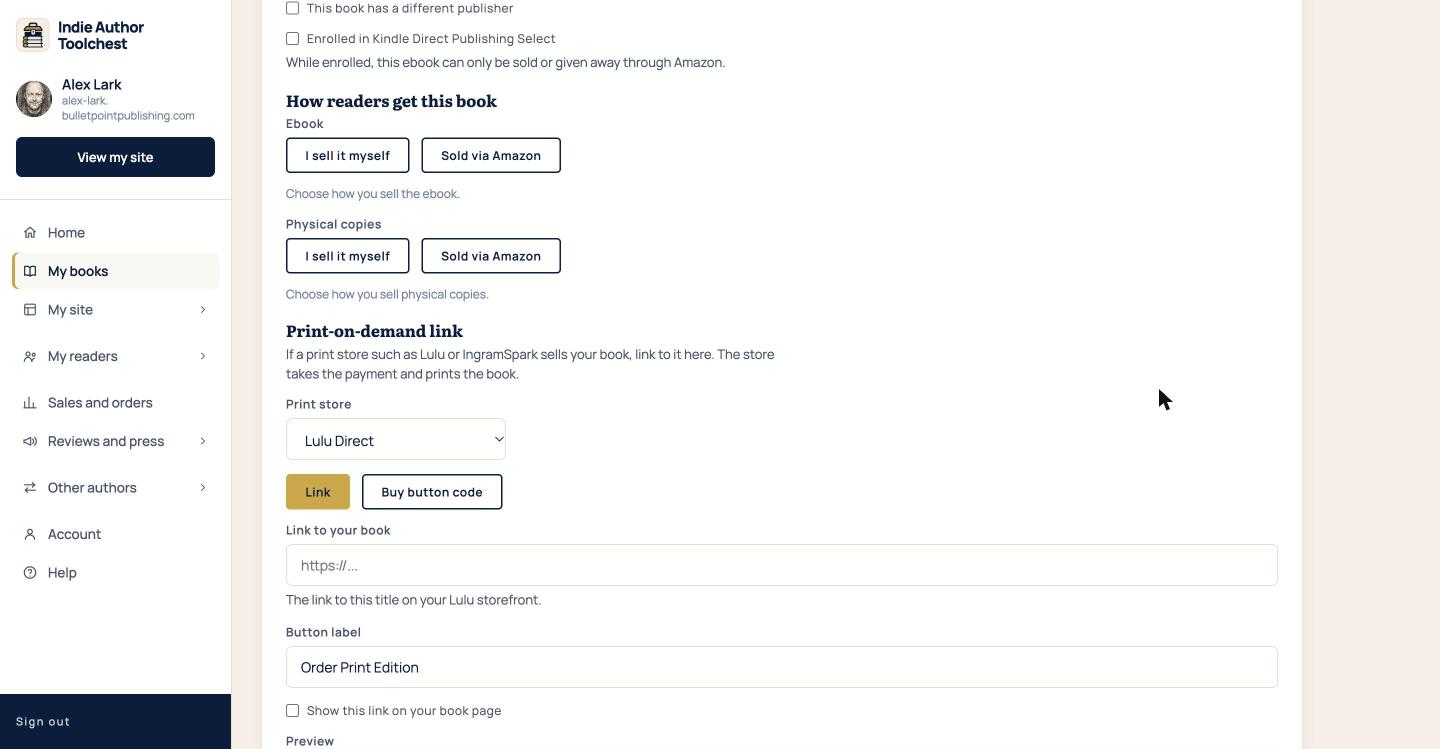
Add your print store link
- In the Print store list, choose your store. The list includes Lulu Direct, IngramSpark, Bookvault, BookBaby and Blurb. Choose Custom if yours is not listed.
- Paste your book's web address into Link to your book. The line under the box tells you which link the store expects, such as the link to your title on your Lulu storefront.
- Change Button label if you like. It starts as Order Print Edition and can be up to 40 characters.
- Tick Show this link on your book page. Nothing appears for readers until you do.
- Check the Preview, then select Save book at the bottom of the form.
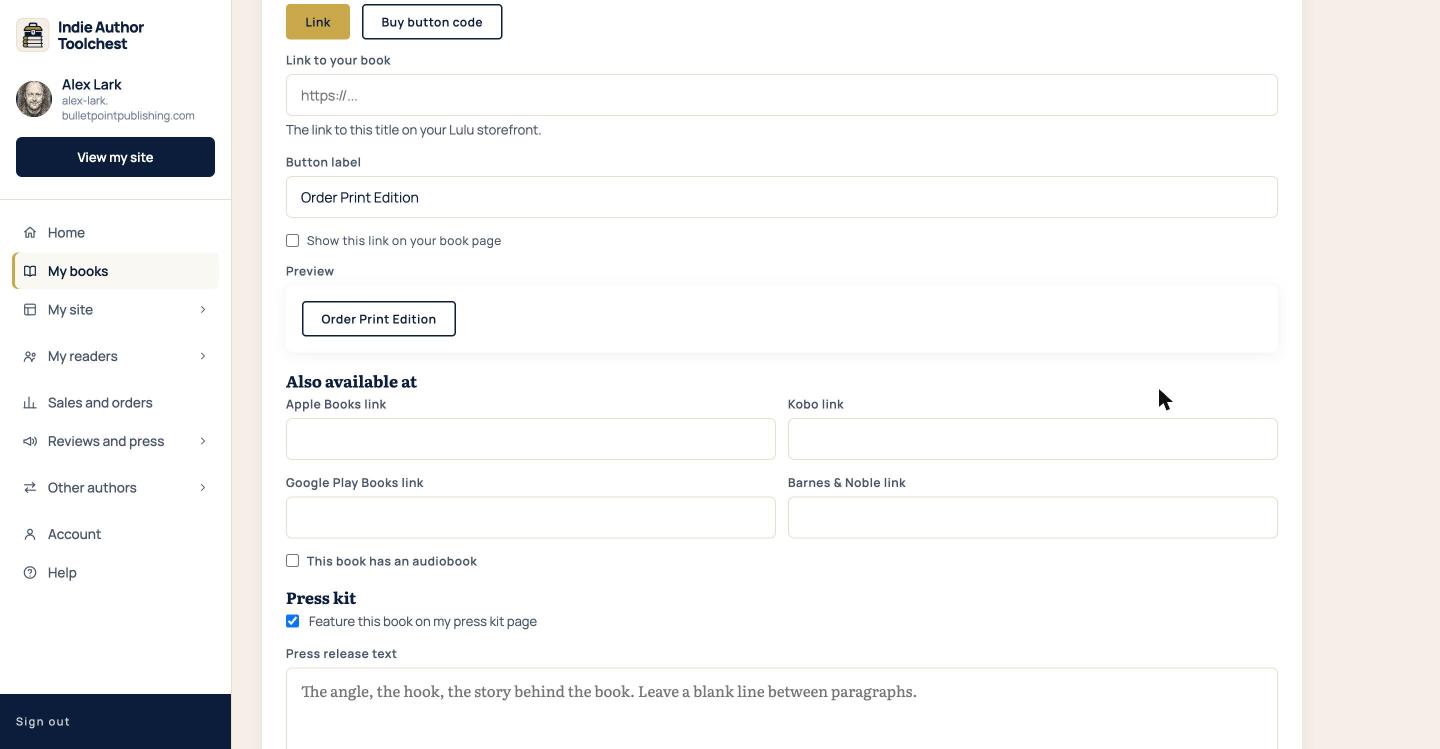
The Preview shows the button as a reader will see it, with your label on it. Change the label and the preview changes at once, so you can try a few wordings before you save. A label such as Order a paperback says what the button does.
Check the link before you save
The form checks your link when you type it. For a named store the link has to start with https:// and has to be an address on that store's own website. A Lulu link in the IngramSpark setting shows an error under the box, and so does a link without https. The Custom choice accepts any address that starts with https.
Some stores also give you buy button code to paste in place of a link. When the store you chose offers it, two buttons appear above the link box, Link and Buy button code. Select Buy button code and paste the snippet from your store account into the box that opens. A link is the simpler choice, and Custom offers the link only.
What readers see
Open your book from View my site. When the link is switched on, a button with your label sits in the row of buttons under the tagline, and it opens the print store in a new tab. It appears alongside any other buttons the book has, such as store links and an audiobook.
It shows once the book is live. A book with its status set to Coming soon shows no print button until you change the status to Published. Changes can take up to five minutes to show on the public page.
Good to know
A print-on-demand link is separate from selling physical copies yourself. The store handles the payment, printing and posting, and the sale does not appear under Sales and orders.
Next step
If your ebook is in KDP Select, read Selling direct while your book is in KDP Select. Print is outside that exclusivity, which makes a print link a good use of your own page.
You can try all of this free for 14 days. Start with the Indie Author Toolchest.
Run it all from one place
Author page, direct sales, reader list, review copies and press kit, built from one ASIN. Free for 14 days, no card.
Start your free trial