
Find your way around your Toolchest dashboard
Learn what each item in the Indie Author Toolchest dashboard menu does, from My books to Reviews and press, and which one to open first. Free for 14 days.
By the end of this guide you will know what every item in the Indie Author Toolchest dashboard is for and which one to open first, so one dashboard can run your website, your mailing list, your sales and your review copies.
The dashboard looks like a lot the first time. It is a menu down the left and a page on the right, and each menu item does one job. You can open any of them without changing anything, so look around freely.
Sign in and start on Home
- Go to indieauthortoolchest.com/login, enter your email and click Send my login link. You never need a password.
- Open the email and click the link. The dashboard opens on Home.
- Read the box headed Your site. It shows your address, and the Edit your site button takes you to your profile and design settings.
- Find the Get set up checklist below it. Each row opens the page for that job, so you can work down it in order.
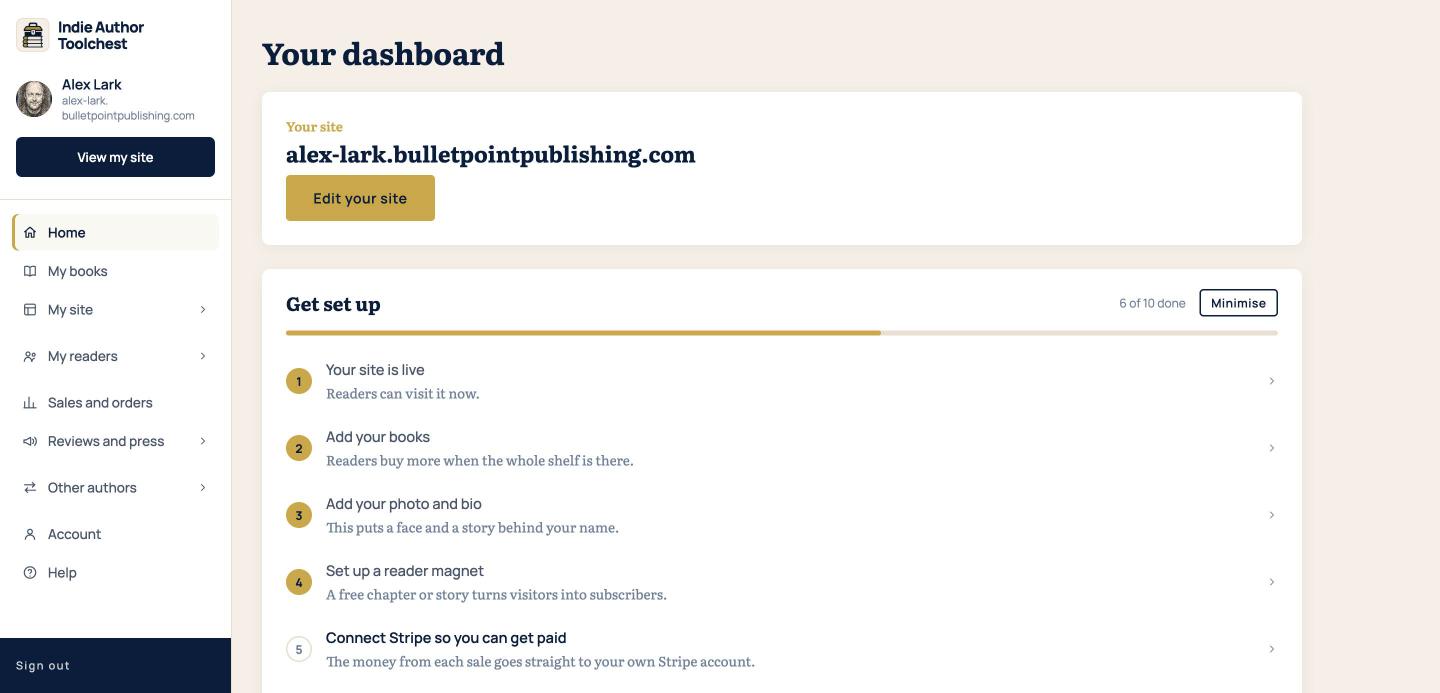
At the very top of the menu is View my site. It opens your public site in a new tab, so you can see what a reader sees.
The menu, item by item
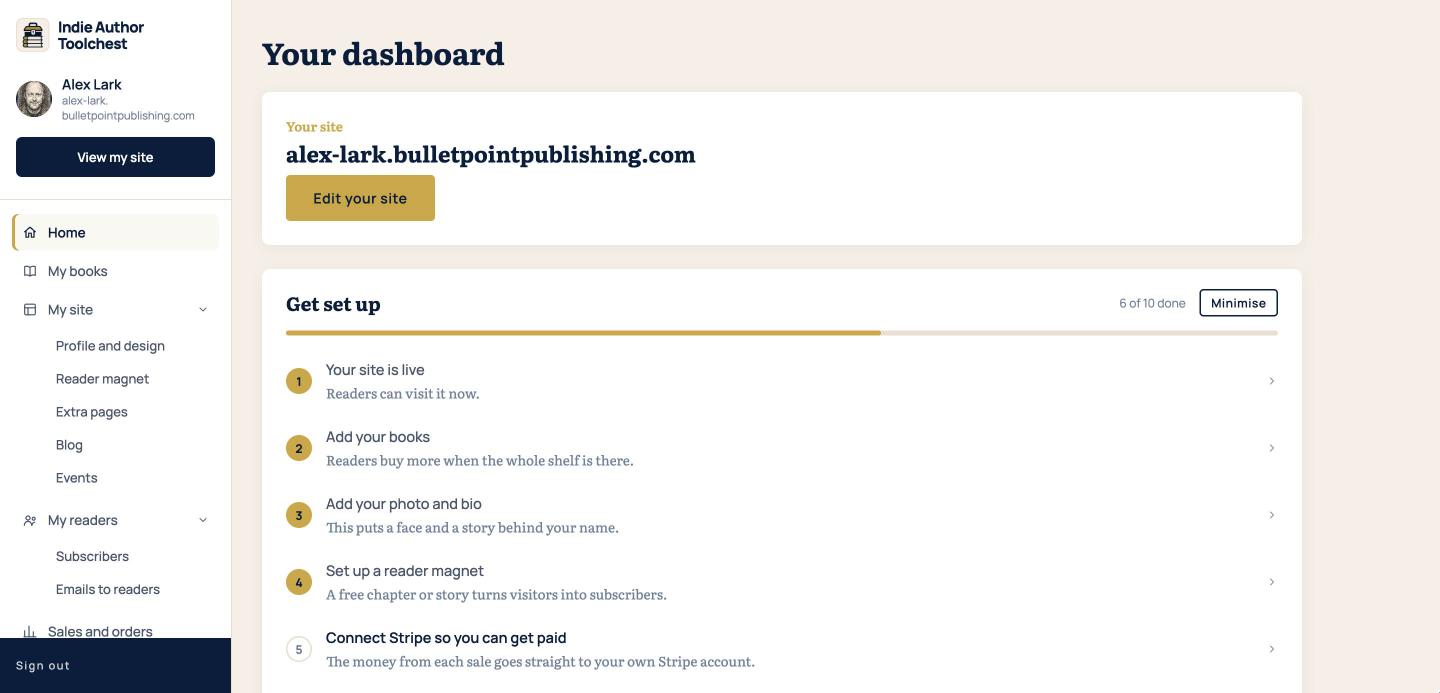
Some items open a page and others open a short list underneath them. The first half of the menu is about your books, your site and your readers.
- Home is where you land. It holds your checklist and your main numbers.
- My books is where you add books, set prices and upload ebook files.
- My site opens five pages: Profile and design, Reader magnet, Extra pages, Blog and Events. Everything you change here appears on your site.
- My readers opens Subscribers, where your mailing list lives, and Emails to readers, where you write to it.
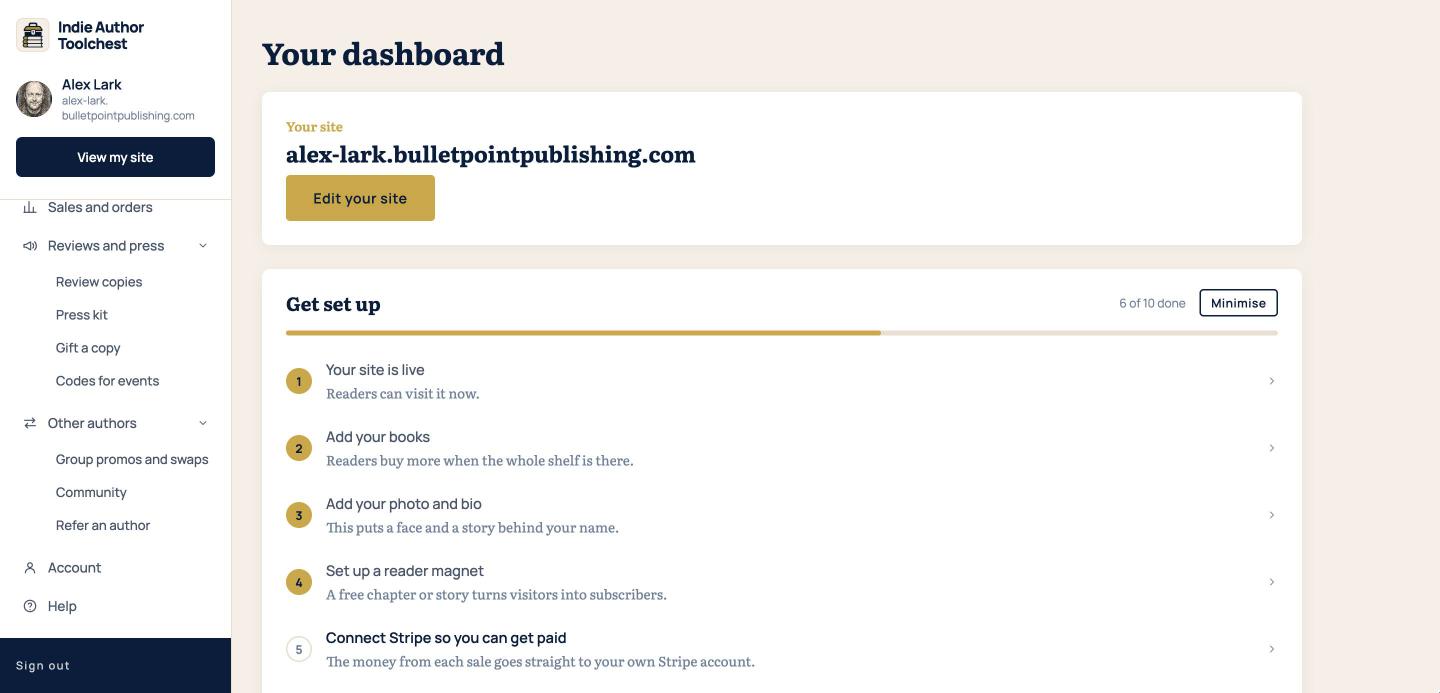
The second half covers money, reviews, other authors and your own details. Scroll the menu down to see it.
- Sales and orders shows what you have earned and the orders you still need to post.
- Reviews and press opens Review copies, Press kit, Gift a copy and Codes for events.
- Other authors opens Group promos and swaps, Community and Refer an author.
- Account holds your login email and your Stripe connection, which is how the money from a sale reaches you.
- Help has searchable articles and a way to send us a message.
Read the numbers on Home
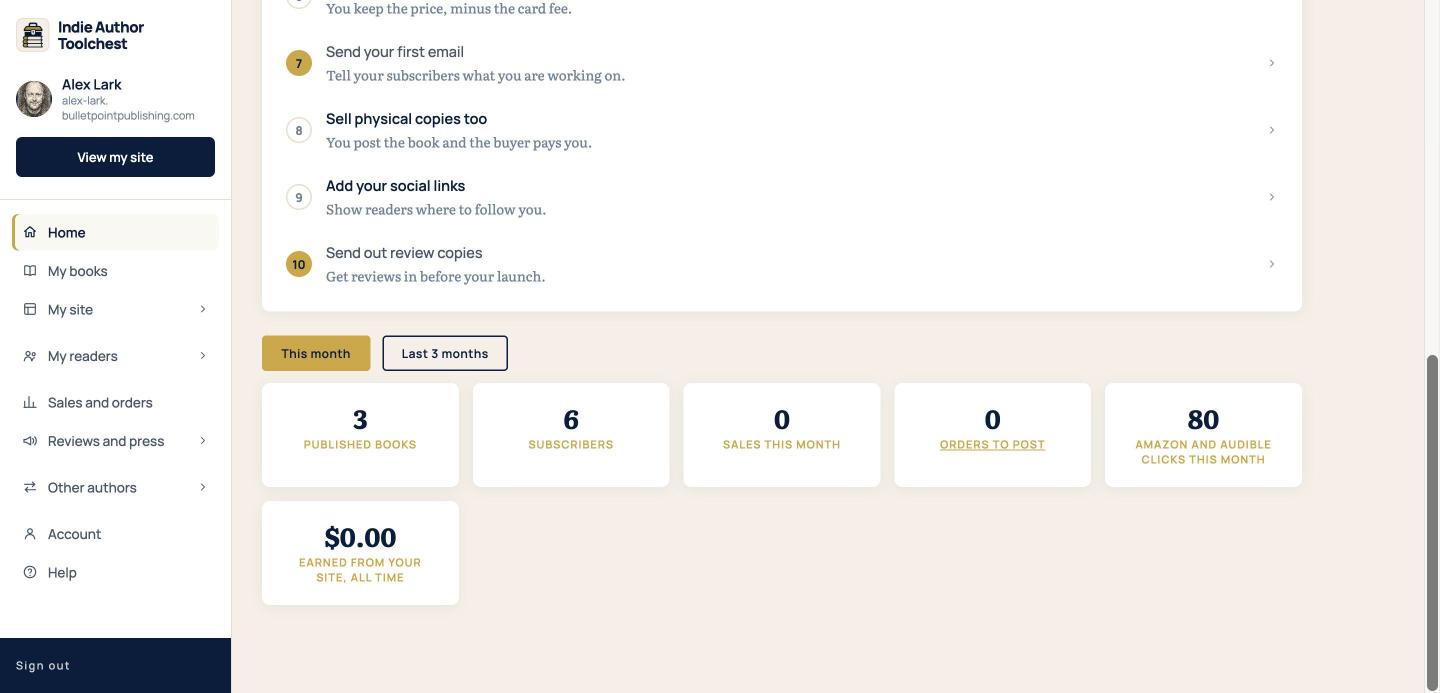
Scroll down on Home and you reach two buttons, This month and Last 3 months, with six number cards beneath them.
- Published books and Subscribers tell you how big your shelf and your list are.
- Sales this month and Earned from your site, all time show your direct sales.
- Orders to post counts paperbacks waiting to go out. Click it to open Sales and orders.
- Amazon and Audible clicks this month shows how many readers your buy buttons sent to those stores.
Where to start
Work through the menu in this order. First, add your books under My books. Next, choose a look for your site under Profile and design. Then set up a free chapter under Reader magnet so visitors have a reason to join your list.
Later, see and export your subscribers, hand out review copies and make codes for events. If you are weighing up what a site needs, our lesson on the six pages worth building lists them.
Good to know
- During the 14-day trial a banner shows how many days are left.
- Selling books, emailing subscribers, gifting copies, sending review copies to press and using your own domain switch on when you subscribe.
- Group promos and swaps open once 100 authors have joined. Until then you can read how they work and the buttons stay switched off.
Your next step
Open My books and add a book to your author website.
You can try all of this free for 14 days, with no card: start at the Indie Author Toolchest.
Run it all from one place
Author page, direct sales, reader list, review copies and press kit, built from one ASIN. Free for 14 days, no card.
Start your free trial